
Tu carrito está vacío
High-speed camera trigger with built-in sensors and intervalometer.
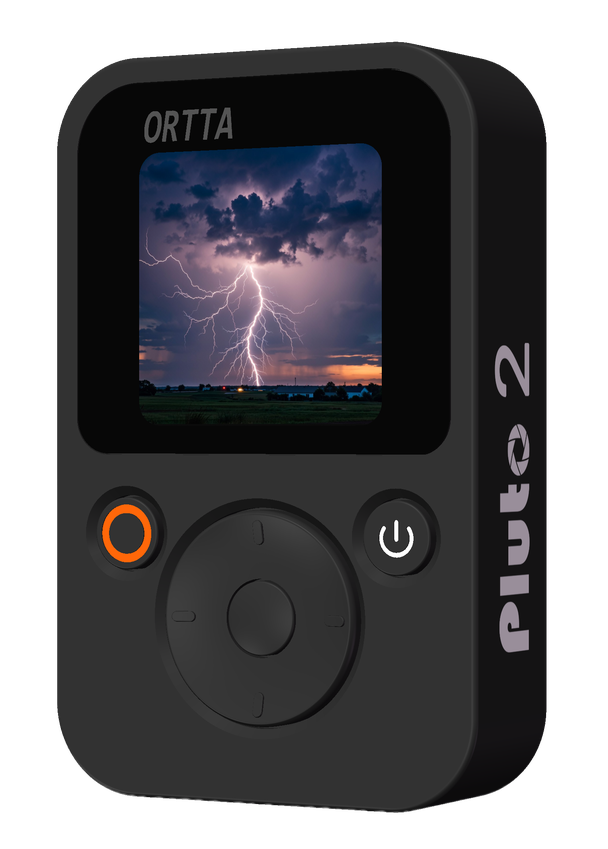
Thank you for purchasing the ORTTA Pluto 2, an advanced camera trigger for high-speed photography, trigger traps, and automated shooting. Pluto 2 has a color screen so every program can be set up and started directly on the device — no phone required — and it connects to your camera wirelessly over Bluetooth or through a classic shutter-release cable.
Pluto 2 is equipped with a lidar distance sensor, laser, light, lightning, and sound sensors, and an Aux port for DIY sensors. It can also fire a flash directly for high-speed work. The unit is powered by a rechargeable Li-ion battery and has a 1/4-20 inch tripod mount.
1. Built-in color screen. Pluto 1 needed the phone app for everything; Pluto 2 is fully standalone. Set up and start every program on the device, watch the program progress live on screen — and even review photos right after they are taken: pair Pluto 2 with an Io Pro and it receives the image from the camera wirelessly (Pluto 2 Pro can pull images from the camera directly over USB).
2. Wireless camera control. Pluto 1 could only fire a camera through a shutter-release cable. Pluto 2 connects to cameras with Bluetooth remote support (Canon, Sony, Nikon, Fujifilm, Panasonic) directly over Bluetooth — no cable needed. For older cameras without Bluetooth, add an Io or Io Pro to make them wireless too. The phone app also connects to Pluto 2 wirelessly. And the classic shutter-release cable is of course still supported.
3. Controls more than cameras. Besides mirrorless/DSLR cameras, Pluto 2 triggers action cameras (GoPro, Insta360, DJI Osmo Action) and your phone's camera (with the Ortta Camera app) — so a sound or laser trigger can now fire your phone or GoPro just as easily as a DSLR.
4. Lidar instead of PIR. Pluto 1's passive-infrared sensor is replaced by an active lidar distance sensor (range 2–10 m, 50 Hz sampling; Pluto 2 Pro: 8–20 m, 500 Hz). Instead of reacting to any warm body anywhere in view, Pluto 2 fires only when something enters the exact distance range you set — far more precise for wildlife traps and passing subjects.
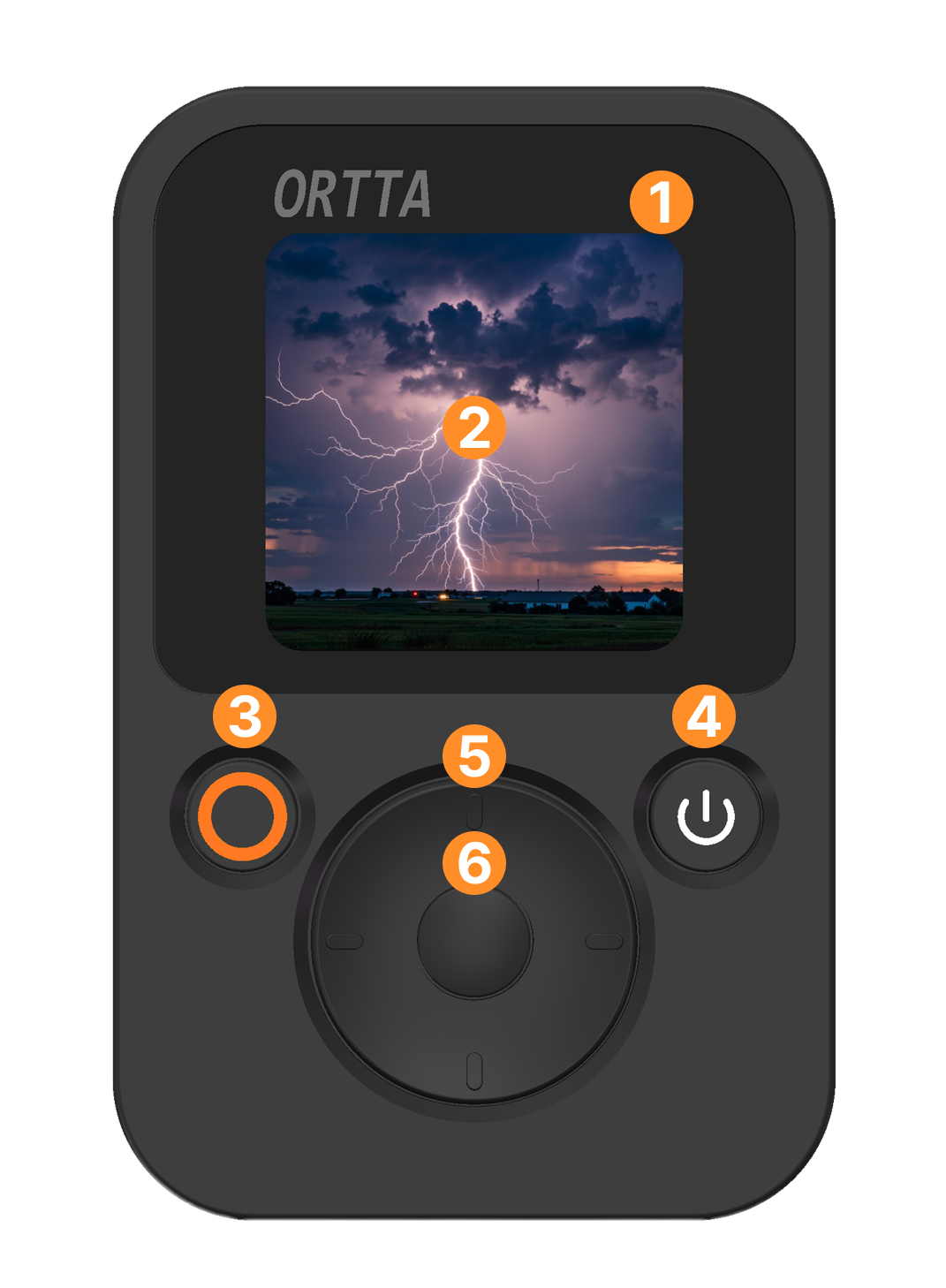
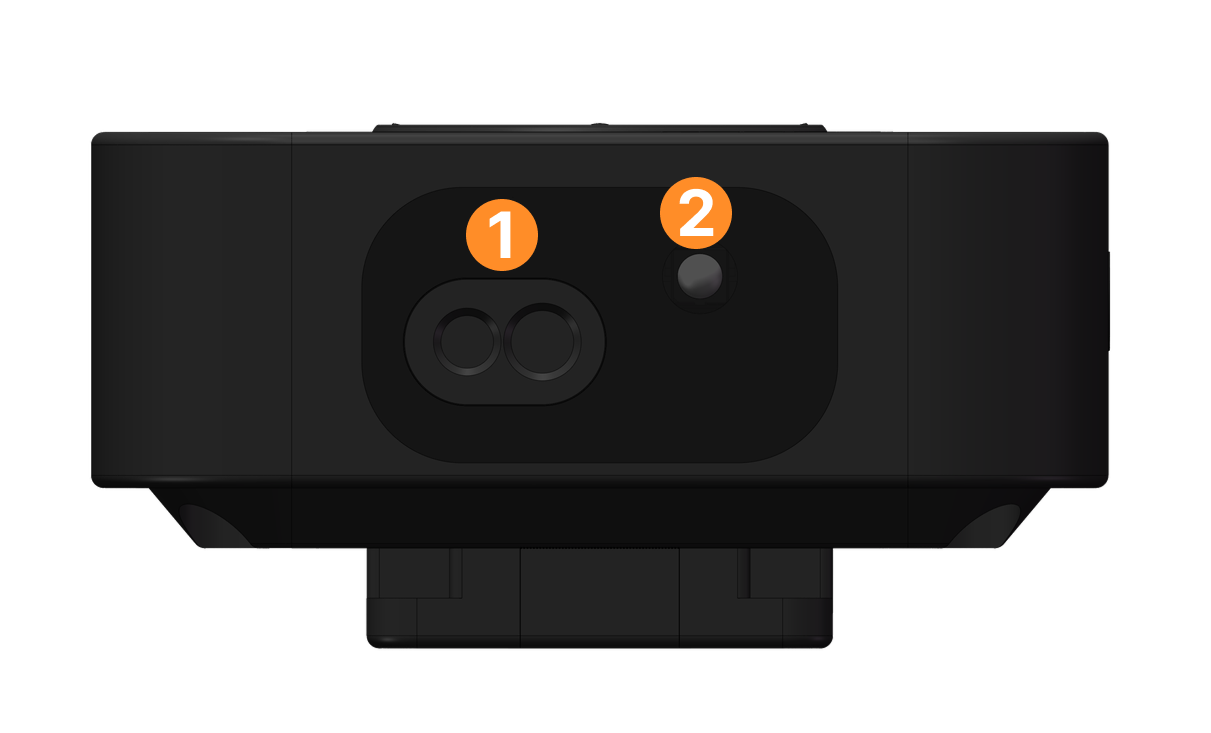
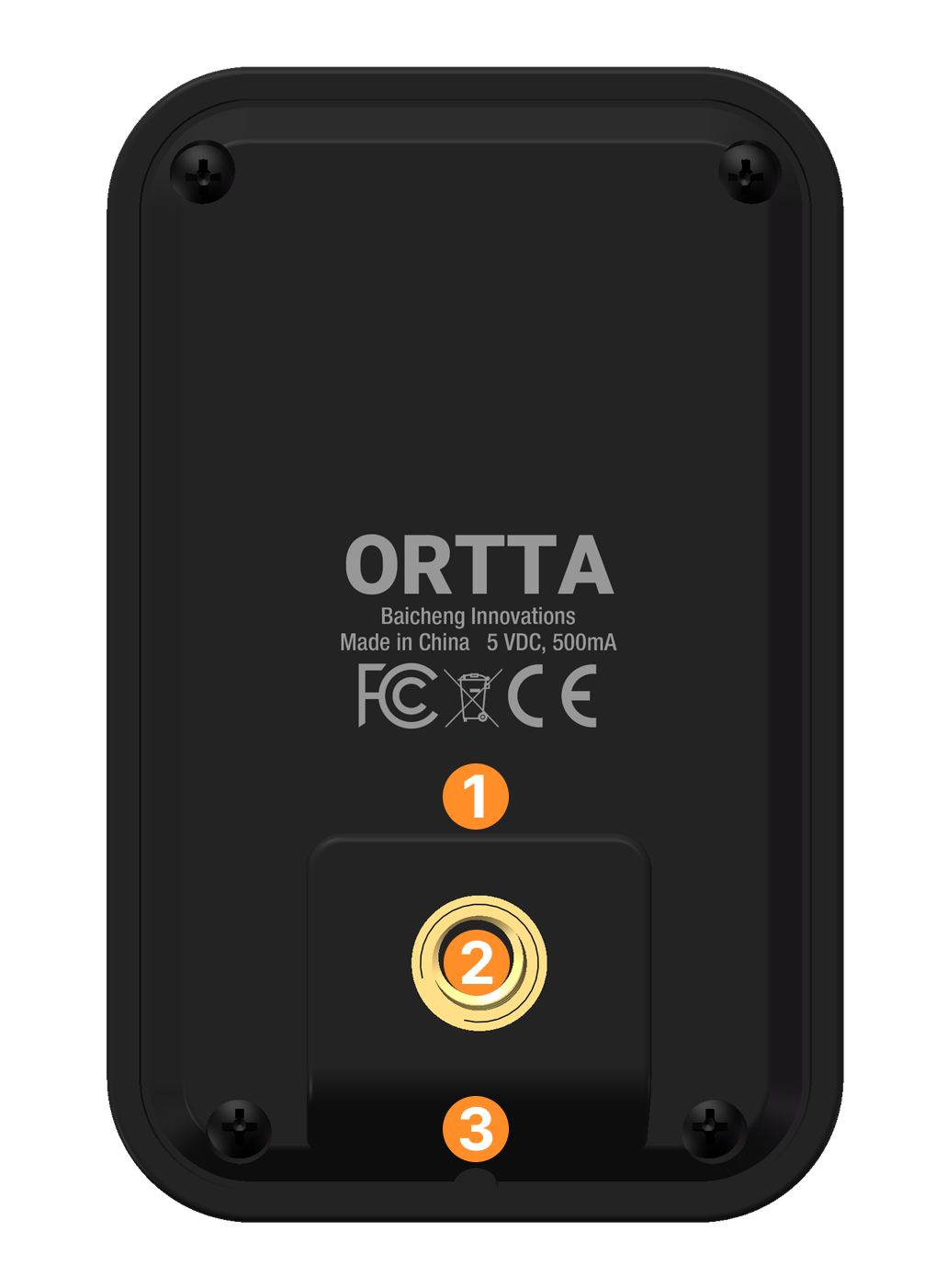
| Button | Click | Long press (hold ~0.5 s) |
|---|---|---|
| Power | Turn the screen on / off | Power off |
| Program | Start the selected program; click again to stop it | Scan for cameras and devices to connect |
| Up / Down | Move the selection; when editing a value, change it | — |
| OK | Select / confirm | — |
| Left | Go back; on the home screen, open the program menu | — |
| Right | Open Settings | Show connected devices |
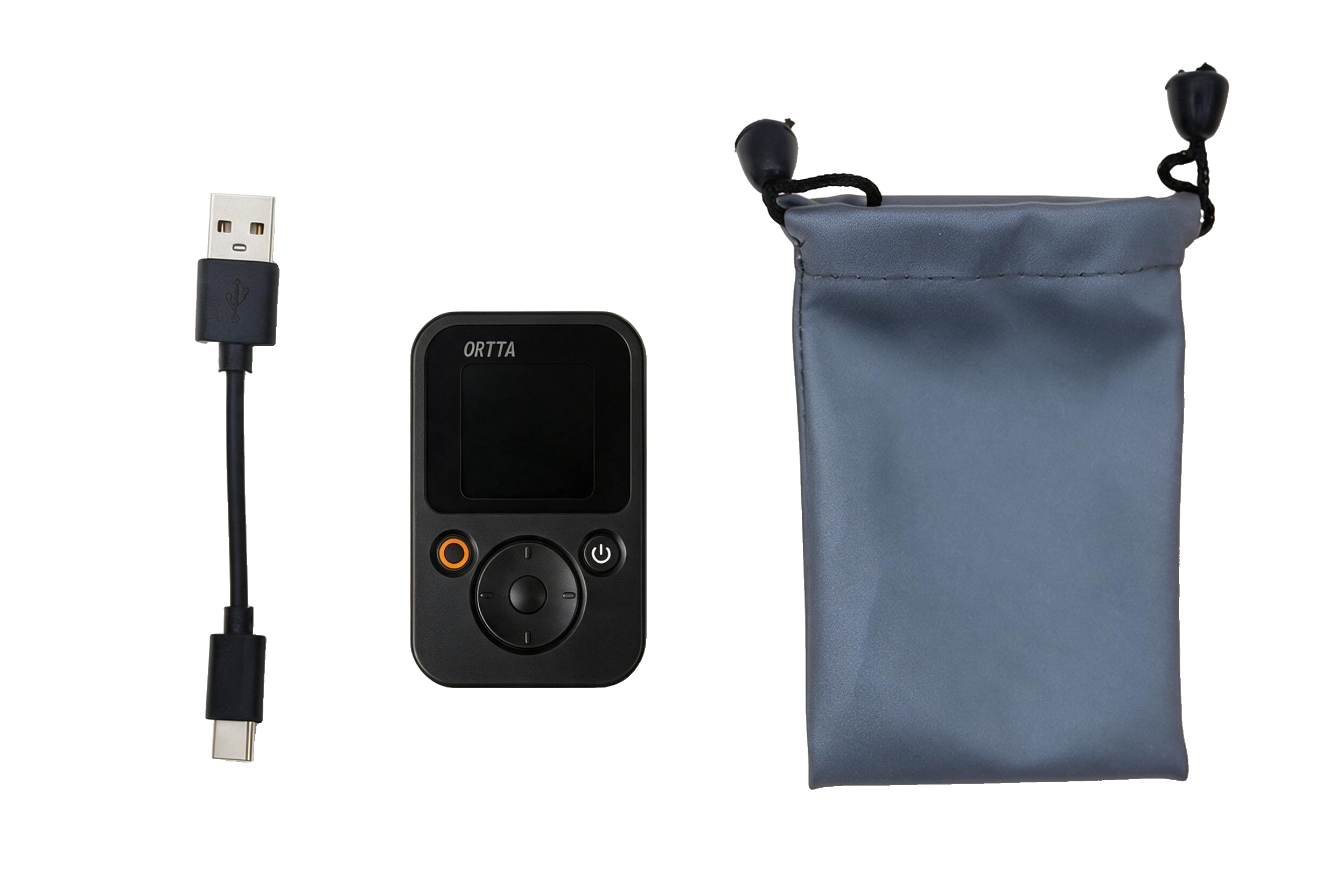
Connect Pluto 2 to a USB power source with the supplied cable. The orange LED lights while charging and turns off when the battery is full.
A full charge takes about 2 hours.
Three LEDs sit at the top right of the screen. From left to right:
| LED | Colour | Meaning |
|---|---|---|
| 1 | Green | Lights when Pluto 2 fires the camera or a program is running |
| 2 | White | Lights while Pluto 2 is on |
| 3 | Orange | Lights while charging, off when fully charged |
The brightness of the green and white LEDs can be changed in Display settings.
After start-up Pluto 2 shows the home screen: the page of the selected shooting program. The example below is the Lidar program.
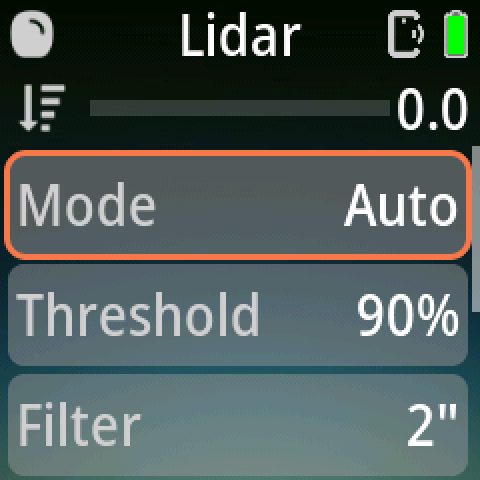
Status bar (top)
| Position | Shows |
|---|---|
| Left | Icon of the connected camera or remote (a small number appears when more than one device is connected). A spinning ring replaces it while Pluto 2 is scanning or pairing. |
| Centre | Name of the selected program |
| Right | Self-timer countdown (only when a self-timer is set), the Ortta app icon while the app is connected, a phone icon while the Ortta Camera app is connected, and the battery |
The battery fill follows the charge level and changes from green to yellow to red. A white lightning bolt appears while charging.
Short messages slide down over the status bar, for example "Program is running" or "Select program".
Live reading (sensor programs only)
Sensor programs show the program icon, a bar and a number under the status bar. For Lidar this is the measured distance in metres (0 – 9 m). For the other sensors it is the current sensor level, 0 – 100. The reading is hidden while the program is running.
Parameter list
The rows below are the program's parameters. The row with the orange border is selected, and the scroll bar on the right shows that more rows are below.
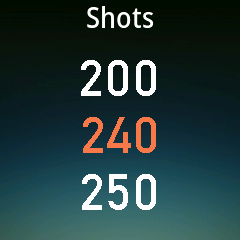
When you press OK on a row, its choices appear one above the other. The current value is in the middle, highlighted in orange. Change it with Up / Down.
Program menu
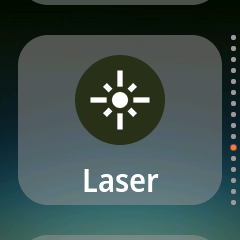
Press Left to open the program menu. Each program has a large icon and its name; the dots on the right show your position in the list. Move with Up / Down and press OK to select a program.
While a program is running
The parameter list is replaced by a progress screen. The program name is at the top and a ring shows the progress.
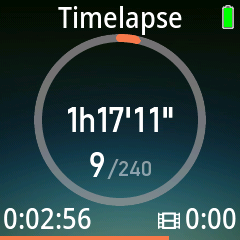
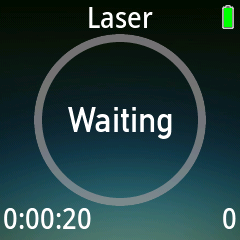
Click Program to stop the program.
Note: pair Pluto 2 inside the Ortta app, as described below. Do not pair it in your phone's system Bluetooth settings: the pairing will be rejected.
Turn on Pluto 2.
Open the Ortta app on your phone.
Open the Device page, either way:
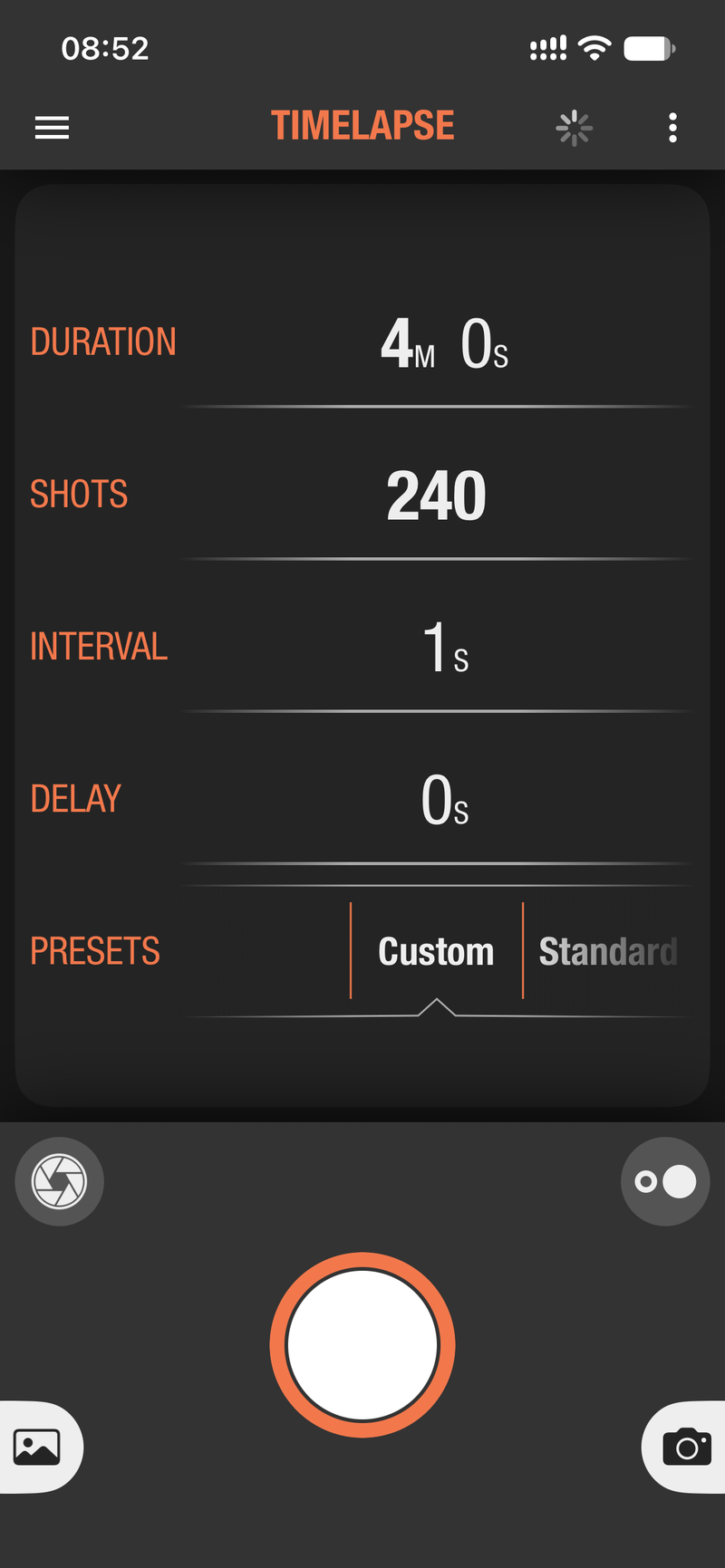
The app starts scanning automatically. Pluto 2 appears under Discovered devices.
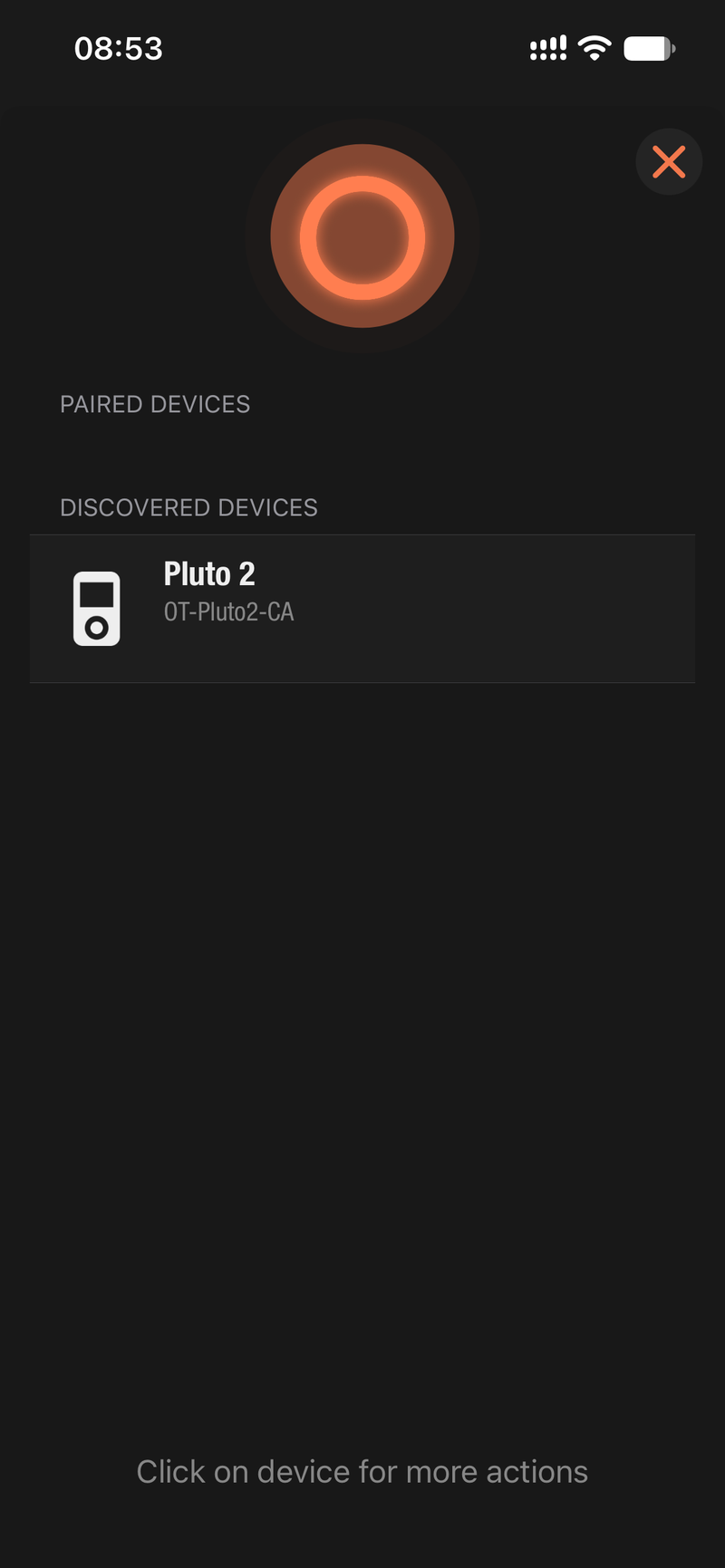
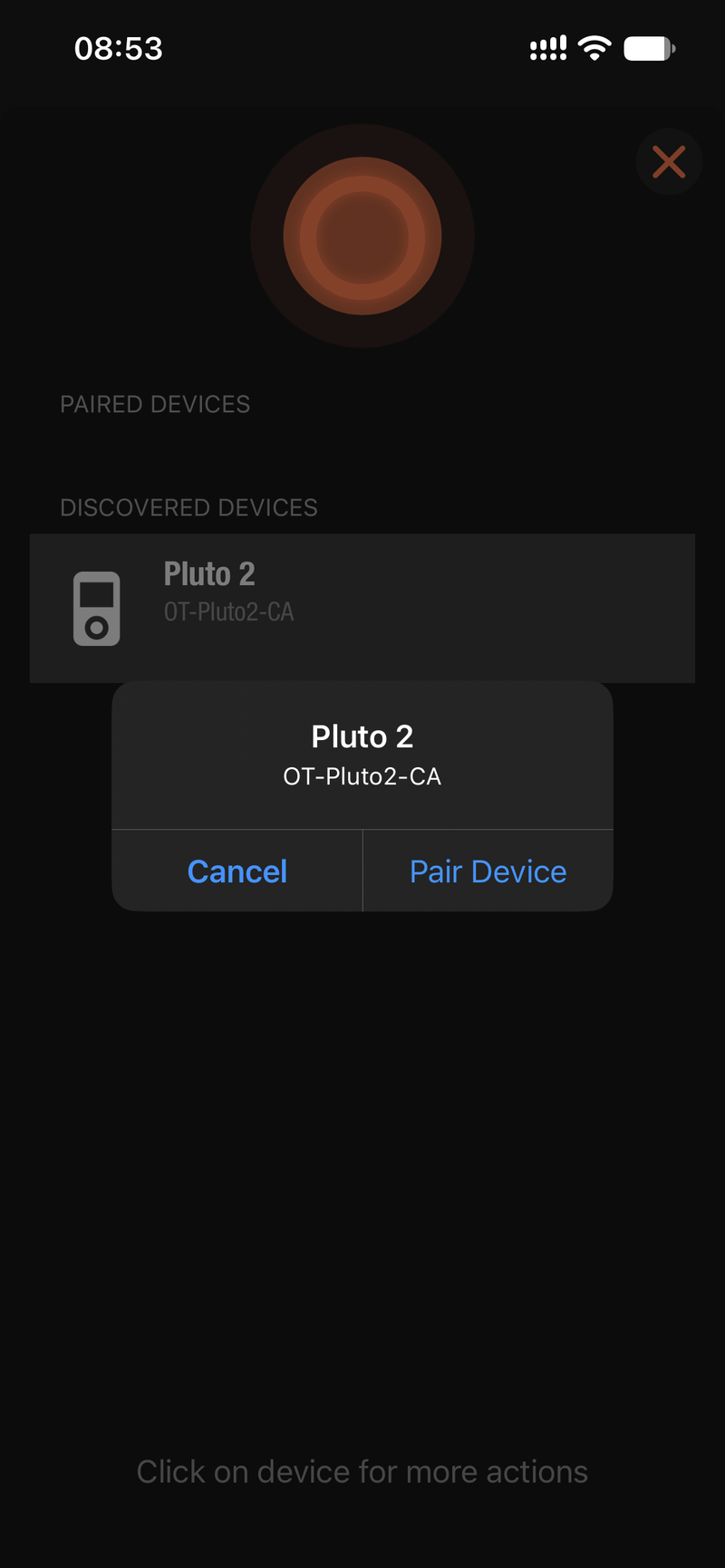
Tap Pluto 2. In the dialog, tap Pair.
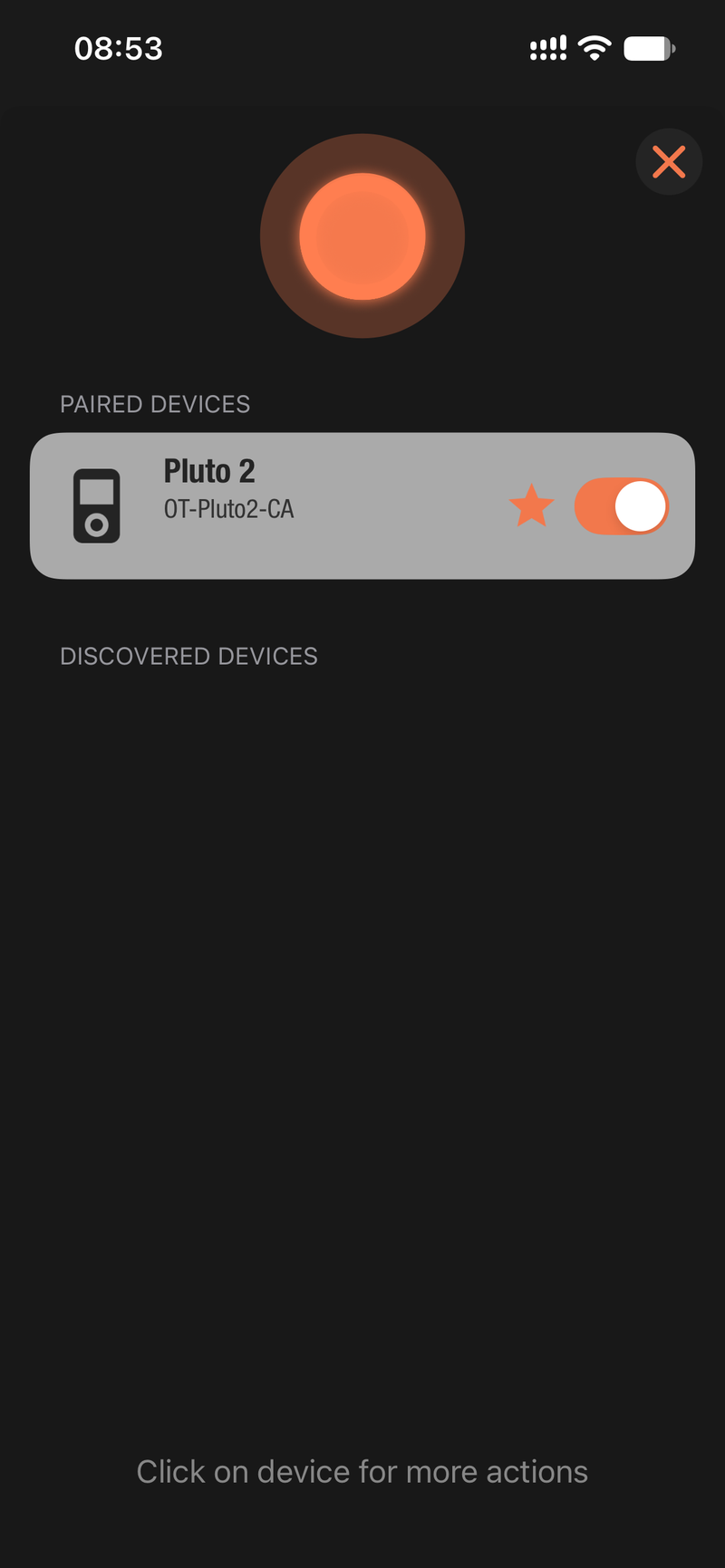
Pluto 2 now appears under Paired devices.
Pluto 2 can fire your camera several ways — pick the one that matches your gear:
| Your gear | Connection |
|---|---|
| Canon / Sony / Nikon / Fujifilm / Panasonic with Bluetooth remote | Direct Bluetooth — no cable |
| GoPro / Insta360 / DJI Osmo Action | Direct Bluetooth — no cable |
| Older camera without Bluetooth | Via an Io or Io Pro |
| Any camera with a remote port | Shutter-release cable |
| Your phone's camera | Ortta Camera app |
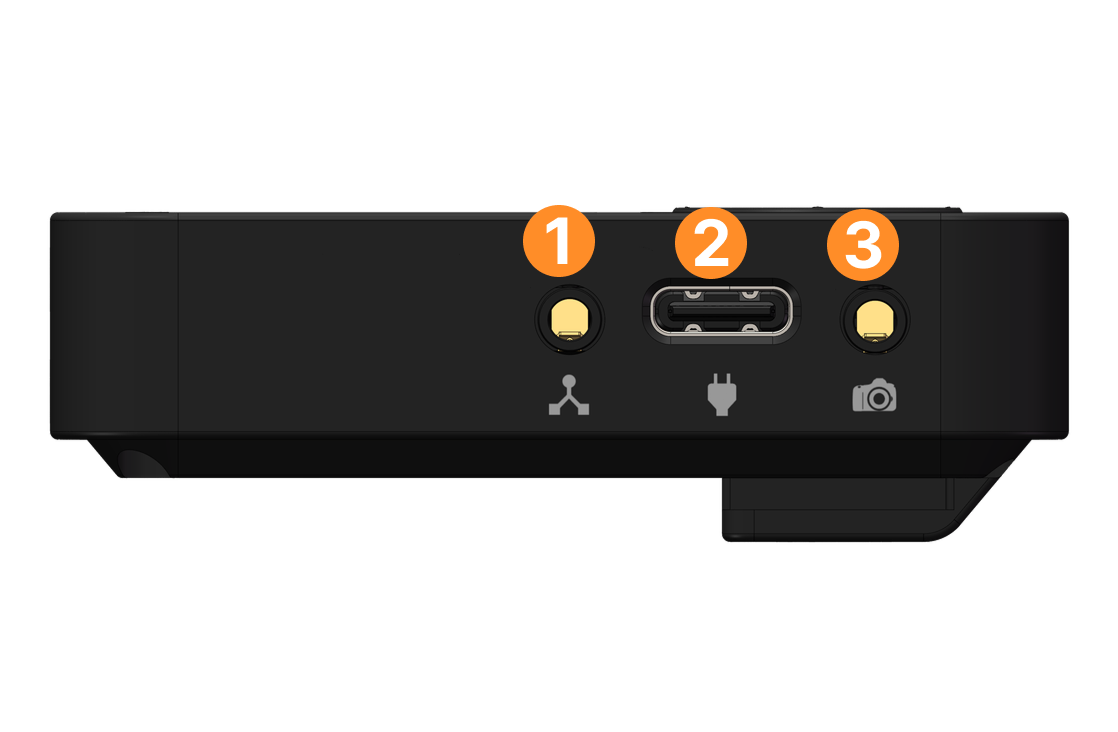
| Flash (high-speed photography) | PC sync cable to the Camera/Flash port |
Applies to Canon, Sony, Nikon, Fujifilm, Panasonic, GoPro, DJI Osmo, and Ortta devices (Io, Io Pro).
Put the camera in Bluetooth pairing mode. The menu name differs by brand, so check your camera's manual (look for "Bluetooth remote" or "smartphone pairing").
On Pluto 2, press Right to open Settings, then choose Devices › Add.
Pluto 2 starts scanning. Nearby devices appear in the Discovered list with an icon and the name the device advertises. A sound plays and the selection jumps to each new device. The scan runs until you leave this page.
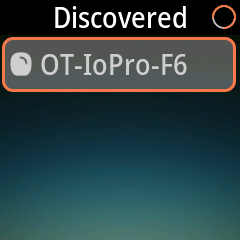
Select your camera and press OK.
Pluto 2 shows Paired and a confirmation sound plays. The camera now appears under Devices.
Brand notes:
If you see Pairing Failed, bring the camera closer, make sure it is still in pairing mode, and try again. Already Paired means this device is already in your list, and Max 10 Paired means you must remove one first.
Pluto 2 can hold up to 10 paired devices, 6 of them enabled at once. A trigger is sent to all connected Bluetooth cameras, so you can fire several cameras together. The first device you pair becomes the master.
To manage a device, open Settings › Devices › Devices, select it and choose Enable, Disable, Set Master or Remove.
Install the Ortta Camera app on the phone you want to use as a camera and pair the phone with the Ortta app as described in Pairing with the Ortta App. The phone does not appear in Pluto 2's Devices list. While it is connected, a phone icon is shown in the status bar.
Connect the cable to the Camera/Flash port. There is nothing to pair or set up: Pluto 2 drives the port on every trigger. Use a cable made for your camera, or a PC sync cable for a flash.
Tip: pair Pluto 2 with an Io Pro and photos appear on Pluto 2's screen right after they are taken — the Io Pro reads the image from the camera over USB and sends it to Pluto 2 wirelessly.
Pluto 2 includes the following built-in shooting programs, each with its own adjustable parameters. Programs run entirely on the device — once started, Pluto 2 works standalone.
| Program | What it does for the photographer |
|---|---|
| Shutter Release | Wireless trigger with single / hold / lock / bulb / burst / timed modes |
| Time-lapse | Automated time-lapse, with optional bulb-ramp |
| HDR | Auto exposure bracketing (bulb) |
| Star Trail | Continuous long-exposure sequence for star-trail stacking |
| ND | ND-filter long-exposure calculator + shooting |
| Starscape | Astro exposure calculator (500-rule) + shooting |
| Video | Timed recording, overcomes the 30-minute limit |
| Timer | Scheduled shooting with a start/end clock time |
| Boltlapse | Lightning-triggered time-lapse |
Use this program to take a single picture manually. Depending on the release mode, Pluto 2 either instructs the camera to release the shutter with the current in-camera settings, or times an arbitrary exposure using the camera's Bulb mode.
Release modes:
For Hold, Lock, and Bulb modes, set your camera to Bulb. For the others, any exposure mode works, including fully automatic modes. Use manual focus, or see PreFocus if you want the camera to autofocus before each shot.
Time-lapse takes a series of photos at a fixed interval; the frames are played back as video to compress minutes or hours into seconds. Use it for sunsets, clouds, traffic, crowds, construction, or the night sky.
How to use
| Setting | What it means | Tips |
|---|---|---|
| Shots | Total number of frames to capture | 240 frames ≈ 8–10 s of final video at 24–30 fps |
| Interval | Time between each frame | Fast subjects (traffic) 1–2 s · clouds 3–5 s · stars/sunset 15–30 s |
| Duration | Total shoot time = Shots × Interval | Enter a Duration and Pluto 2 back-solves Shots for you |
| Start Delay | Wait time before the first frame | Use to walk away / avoid touching the rig |
Note: your camera may not be able to shoot as fast as the interval you set. The maximum frame rate depends on image size, memory-card speed, and other factors. If the camera cannot keep up, some frames will be skipped.
Avoiding flicker: set exposure, white balance, and focus to manual. If you still see "aperture flicker" (the lens cannot close the aperture blades exactly the same amount every time), use the lens-twist trick: hold the DOF-preview button, press the lens-release button, and twist the lens a tiny amount until the aperture display shows "00". Take a few test shots to make sure there is no error.
Your camera battery may not survive a long time-lapse. Enable the automatic meter-off timeout in your camera so it sleeps between shots; Pluto 2 wakes it up before each frame (see PreFocus). For sequences longer than a day, power Pluto 2 from a USB charger.
Smoothly ramp the exposure across the sequence so a sunset-to-night time-lapse stays evenly exposed. Set your camera to Bulb mode; Pluto 2 times each exposure and gradually changes it from the first to the last value.
Tips:
High dynamic range imaging captures a greater range of light by shooting multiple photos with exposure bracketing, which you merge into a single HDR image afterwards.
Pluto 2 shoots the bracket using the camera's Bulb mode:
Because Bulb mode is used, exposures faster than ~1/20 s may not trigger reliably. For bright scenes, add an ND filter to push all exposures longer.
Star Trail takes a continuous sequence of long exposures of the night sky, which you stack afterwards into a single star-trail image.
Enable Live View on your camera to avoid vibration from the mirror.
The ND program calculates the correct exposure when using neutral-density filters. Set the filter strength and the metered shutter speed without the filter; Pluto 2 computes the new shutter time and takes the long exposure for you (camera in Bulb mode).
When shooting sharp (non-trailing) stars, the exposure time is limited by the "Rule of 500". Select your camera model and the actual focal length; Pluto 2 calculates the slowest usable shutter speed with the crop factor already accounted for, and takes the exposure. Choose the Rule of 400 for faster-moving stars near the celestial equator.
Video mode works around the 30-minute recording limit of many cameras: when the camera stops recording, Pluto 2 restarts it immediately.
Only cameras that can start/stop video recording via the shutter-release cable or over a wireless connection are supported.
Timer mode shoots during a set period of each day — useful for long-term time-lapses of construction sites or growing plants. Set the Start Time and End Time, plus the photo interval (or video retrigger time). Power both the camera and Pluto 2 from AC adapters for multi-day use.
Boltlapse is a time-lapse that also watches for lightning. It takes a picture at every interval like a normal time-lapse, and takes an extra picture whenever the lightning sensor fires between two intervals — so you get a steady sequence plus every strike that happens while you wait.
| Parameter | Default | What it does |
|---|---|---|
| Shots | 240 | Number of time-lapse frames before the program stops. Lightning pictures do not count towards this number. |
| Interval | 1" | Time between time-lapse frames. |
| Delay | 0 | Wait before the program starts. Pluto 2 always waits at least 2" so the sensor can settle. |
| Sensitivity | 30% | Lightning sensor sensitivity. Higher values react to fainter flashes. |
| Pre-Focus | Off | Holds the camera's focus (half-press) while waiting, so a lightning picture has no autofocus delay. |
| Drive | See Drive Settings. Reset Time is the pause after each picture before the sensor is armed again. |
Exposure time for each picture comes from Settings › Camera. Use manual exposure on the camera. If a long exposure covers several intervals, Pluto 2 takes just one extra frame instead of catching up.
See Lightning for aiming and sensitivity tips.
Pluto 2's sensors react quickly: Sound, Light, Lightning and Aux respond within 1 ms and Laser within tens of microseconds. Lidar responds within 20 ms (2 ms on Pluto 2 Pro), so it suits subjects at moderate speed rather than split-second events. Sound, Light, Lightning, Aux and Laser are ideal for high-speed photography and trigger traps.
The goal is to catch an object in motion: detect an event, wait a precise delay, and fire. There are two methods:
Shutter method — Pluto 2 triggers the camera. It works in daylight, but the camera's shutter lag (often 100 ms or more, and slightly variable) limits timing accuracy, and the mechanical shutter limits effective speed.
Flash method — the camera sits on a long exposure (~2 s) in a dark room, and Pluto 2 triggers the flash instead. The flash duration (1/10,000 s or faster at low power) becomes the real exposure time, with virtually no lag. Use this whenever timing accuracy matters: connect the flash to Pluto 2's camera port with the PC sync cable, open the camera shutter, then let the sensor fire the flash.
The lidar sensor continuously measures the distance in front of Pluto 2 (range 2–10 m, sampled 50 times per second) and fires when something enters the distance range you set.
It replaces the passive-infrared wildlife mode of Pluto 1 with something far more precise: instead of reacting to any warm body anywhere in view, Pluto 2 triggers only when the subject is at the exact distance you choose — a bird landing on a branch, an animal on a trail, a cyclist crossing a line. It works day and night, and unlike PIR it also detects subjects that are not warm-blooded.
Need longer range or faster subjects? Pluto 2 Pro's lidar reaches 8–20 m and samples at 500 Hz.
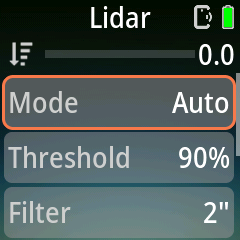
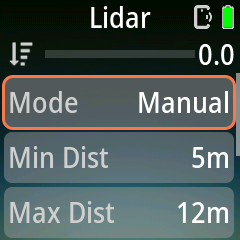
Lidar has two detection modes, chosen with Mode:
| Setting | Shown in | Options | Default | Description |
|---|---|---|---|---|
| Mode | Both | Auto, Manual | Auto | Detection mode (see above). |
| Threshold | Auto | 10%, 20% … 90%, 95% | 90% | Fire when the distance falls below the reference × Threshold. A higher value is more sensitive: at 90% a 10 % closer reading fires, at 50% the subject must be half as far away. |
| Filter | Auto | 1" – 10" | 2" | How often the reference distance is refreshed. Slow changes (wind, a car parking) are absorbed into the reference; fast changes still fire. |
| Min Dist | Manual | 0 m, 0.1 – 0.9 m, 1 – 20 m, 25 m, 30 m | 5 m | Near edge of the trigger window. |
| Max Dist | Manual | 0 m, 0.1 – 0.9 m, 1 – 20 m, 25 m, 30 m | 12 m | Far edge of the trigger window. |
| Sensitivity | Both | 1, 10, 100, 1000 | 1 | Number of consecutive qualifying readings required before firing. Raise it to ignore single stray readings (rain, insects, leaves). |
| Misc | Both | submenu | — | Trigger mode, capture mode and shot limits (below). |
| Drive | Both | submenu | — | Still/Video, shutter pulse, burst and trigger reset time. See Drive Settings. |
Readings are taken 50 times per second, so Sensitivity 10 needs about 0.2 s of continuous detection and 100 about 2 s.
The usable range is about 2–10 m; the 0–30 m settings are the limits of the option lists, not a promise of reliable readings at those distances.
| Setting | Options | Default | Description |
|---|---|---|---|
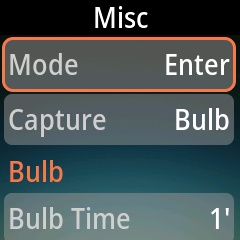
| Mode (trigger mode) | Enter, Exit, Enter/Exit, Continuous | Enter | Manual mode only: when to fire relative to the window. Enter — when the subject moves into it. Exit — when it leaves. Enter/Exit — on both. Continuous — keeps shooting as long as the subject stays inside the window, one picture per capture cycle, and stops when it leaves. |
| Capture | Normal, Dual, Bulb | Normal | Normal — one picture or video per trigger, as set in Drive. Dual — sound opens the camera, lidar fires the flash (high-speed photography, see below). Bulb — Pluto 2 opens the camera shutter by itself and holds it (Drive Bulb Time, default 1'; Bulb Gap, default 0.2", is the pause before it reopens); the lidar trigger fires the flash and releases the shutter. Use it with the flash method in a dark room. Continuous trigger mode always uses Normal. |
| Bulb Time / Bulb Gap | see Drive Settings | 1' / 0.2" | Shown only when Capture is Bulb. |
| Shots | Unlimited, 1, 2, 5, 10, 20, 50, 100, 200, 500, 1000, 2000, 5000 | Unlimited | Maximum number of triggers allowed in each Window. |
| Window | 1", 2", 5", 10", 20", 30", 50", 1', 2', 5', 10', 20', 30', 60' | — | Length of the counting window for Shots. |
| Gap | 1", 2", 5", 10", 20", 30", 50", 1', 2', 5', 10', 20', 30', 60' | — | Extra cool-down after the Shots limit has been reached, once the window ends. |
| Focus Hold | On / Off | Off | Keep the shutter button half-pressed while waiting, so the camera is already focused and metered when the trigger arrives. Keep Alive pulses are not sent while Focus Hold is on. |
Shots limit. The limit protects your card and battery when a subject lingers or a busy scene triggers constantly. For example, Shots 10, Window 1', Gap 30" allows at most 10 pictures per minute; once the 10th is taken, Lidar pauses until the minute is over, plus another 30 seconds. Setting Shots to Unlimited (or Window to 0) turns the limit off.
Dual capture is for high-speed photography with the flash method. A camera's shutter lag is too long to catch a fast event, so the work is split in two:
The sound threshold is the Sensitivity of the Sound program (1–100, higher catches quieter sounds); Lidar has no separate setting for it, so set it there first.
Use it in a dark room with the camera in manual exposure, so the flash alone makes the exposure. Dual capture waits for the sound first, so it cannot be combined with Continuous trigger mode.
⚠️ Caution: laser beams are dangerous. Avoid eye contact.
Laser works with the Pluto 2 Laser, a laser emitter with its own battery. It is a separate product, sold separately and not included in the box. Aim the beam at Pluto 2's laser sensor (the laser / light / lightning sensor on the front). While the beam hits the sensor Pluto 2 stays idle; the moment something blocks the beam it fires. The response is handled in hardware and takes only tens of microseconds, far less than the camera's own shutter lag.
Optional cable. You do not need to connect the laser to Pluto 2: it works on its own battery and stays on. If you connect it to the Aux port and turn the laser's own power switch off, Pluto 2 powers and switches it for you: on when the program is running, off the moment the beam is blocked, and on again when Pluto 2 is re-armed after the Reset Time. This keeps the laser dot out of your photo when the beam crosses the scene. When you stop the program the laser is not switched off: unplug the cable.
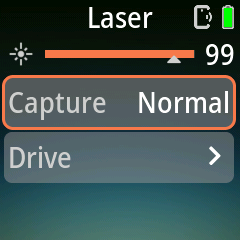
| Setting | Options | Default | Description |
|---|---|---|---|
| Capture | Normal, Dual, Bulb | Normal | How the beam break is turned into a picture (see below). |
| Drive | submenu | — | Still/Video, shutter pulse, burst and trigger reset time. See Drive Settings. |
Normal — one picture (or video) per beam break, as set in Drive. After each trigger Pluto 2 waits for the Reset Time before it is armed again.
Dual — for high-speed photography with the flash method, in a dark room. A sound opens the camera shutter first (Bulb), keeping it open; then the laser beam break fires the flash and releases the shutter. This avoids the camera's shutter lag. After the sound, Pluto 2 waits up to about 4 seconds for the beam break; if it does not come, that attempt is silently abandoned. The sound threshold is the Sensitivity of the Sound program. In Dual mode the Reset Time is at least 1 second, so the buzzer cannot re-trigger the sound sensor.
Bulb — Pluto 2 opens the camera shutter by itself and holds it open (Drive Bulb Time, default 1'; the pause before it reopens is Bulb Gap, default 0.2"). When the beam is broken the flash fires and the shutter is released. Use it with the flash method in a dark room.
Typical use: falling drops, balloon pops, pets or wildlife crossing a line.
Fires on a sound event — a popping balloon, breaking glass, a clap. Use the flash method for sharp results: the sound reaches Pluto 2 almost instantly, far faster than any camera shutter.
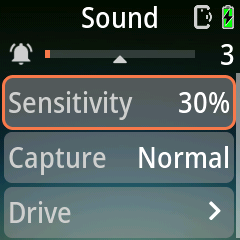
| Setting | Options | Default | Description |
|---|---|---|---|
| Sensitivity | Off, 1%, 5%, 10%, 20% … 100% | 30% | Higher catches quieter sounds. Off never triggers. |
| Capture | Normal, Dual, Bulb | Normal | How the sound is turned into a picture (see below). |
| Drive | submenu | — | Still/Video, shutter pulse, burst and trigger reset time. See Drive Settings. |
Normal — one picture (or video) per sound, as set in Drive. After each trigger Pluto 2 waits for the Reset Time before it is armed again.
Dual — for high-speed photography with the flash method, in a dark room. It uses two sounds, so the camera's shutter lag is out of the picture. The first sound opens the camera shutter (Bulb) and keeps it open; for the next 0.5" Pluto 2 ignores sound, so the camera's own noise cannot cause a false trigger; the second sound fires the flash and releases the shutter. In Dual mode the Reset Time is at least 1 second.
Bulb — Pluto 2 opens the camera shutter by itself and holds it open (Drive Bulb Time, default 1'; the pause before it reopens is Bulb Gap, default 0.2"). When the sound is heard the flash fires and the shutter is released. Use it with the flash method in a dark room.
The camera's own shutter sound can re-trigger the sensor. Increase the Reset Time to ignore it.
Like Sound, but uses ambient light as the signal: a camera flash, a lamp switching on or off, a headlight sweeping past, or a beam of light you break. The light sensor is the laser / light / lightning sensor on the front.
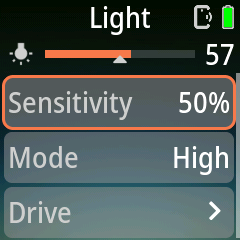
| Setting | Options | Default | Description |
|---|---|---|---|
| Sensitivity | Off, 1%, 5%, 10%, 20% … 100% | 50% | Higher moves the threshold marker so that less light change is needed to trigger. Off never triggers. |
| Mode | High, Low, Toggle | High | High fires while the light level is above the threshold. Low fires while it is below. Toggle fires once each time the level crosses the threshold, in either direction. |
| Drive | submenu | — | Still/Video, shutter pulse, burst and trigger reset time. See Drive Settings. |
After each trigger Pluto 2 waits for the Reset Time before it is armed again. With High or Low, a level that stays on the wrong side of the threshold triggers again as soon as the Reset Time is over, so use Toggle when you want one picture per change.
A lightning flash is over in a fraction of a second, far too fast to react to by hand. Pluto 2 reads the light sensor at high speed and fires the camera the moment a sudden brightening appears, day or night.
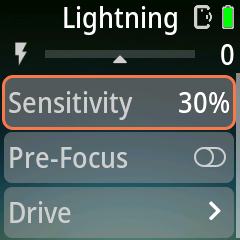
| Setting | Options | Default | Description |
|---|---|---|---|
| Sensitivity | Off, 1%, 5%, 10%, 20% … 100% | 30% | Higher reacts to fainter flashes. Off never triggers. If the sensor fires on lamps or distant flicker, lower it. |
| Pre-Focus | On / Off | Off | On: Pluto 2 holds the camera's focus (like half-pressing the shutter button) while it waits, and again after each Reset Time, so the shutter reacts sooner. It uses more power in both the camera and Pluto 2. |
| Drive | submenu | — | Still/Video, shutter pulse, burst and trigger reset time. See Drive Settings. |
After each trigger Pluto 2 waits for the Reset Time before it is armed again, so one flash does not take several pictures.
The Aux port is for DIYers: connect your own sensor (ultrasonic, smoke, temperature, …) with a 2.5 mm audio cable. The tip of the connector supplies 3.3 V, the base sleeve is ground, and Pluto 2 samples the signal on the middle sleeve. The input signal must stay within 0–3.3 V.
The Aux program reads that signal as an analog level and compares it with a threshold, in the same way as Light. The live level runs from 0 (0 V) to 100 (3.3 V).
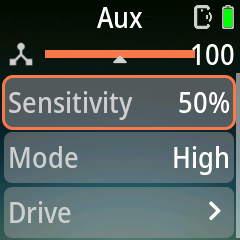
| Setting | Options | Default | Description |
|---|---|---|---|
| Sensitivity | Off, 1%, 5%, 10%, 20% … 100% | 50% | Higher moves the threshold marker so that a smaller signal triggers. Off never triggers. |
| Mode | High, Low, Toggle | High | High fires while the input is above the threshold. Low fires while it is below. Toggle fires once each time the input crosses the threshold, in either direction. |
| Drive | submenu | — | Still/Video, shutter pulse, burst and trigger reset time. See Drive Settings. |
After each trigger Pluto 2 waits for the Reset Time before it is armed again. With High or Low, an input that stays on the wrong side of the threshold triggers again as soon as the Reset Time is over, so use Toggle when you want one picture per change.
Fusion combines several sensors in one program and only shoots during a time window you choose. Use it for jobs such as "take a picture when there is a sound and the light changes, but only at night".
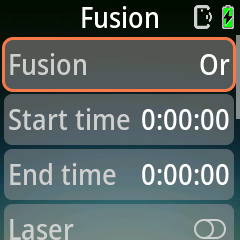
| Setting | Options | Default | Description |
|---|---|---|---|
| Fusion (method) | Or, And | Or | Or fires when any selected sensor triggers. And fires only when all selected sensors trigger at the same moment. |
| Start time | 0:00:00 – 23:59:59 | 0:00:00 | Time of day when Fusion starts to react. |
| End time | 0:00:00 – 23:59:59 | 0:00:00 | Time of day when Fusion stops reacting. |
| Laser | On / Off | Off | Include the laser sensor. It triggers when the beam is blocked. |
| Sound | On / Off | Off | Include the sound sensor. |
| Light | On / Off | Off | Include the light sensor. |
| Aux | On / Off | Off | Include the signal on the Aux port. |
| Drive | submenu | — | Still/Video, shutter pulse, burst and trigger reset time. See Drive Settings. |
Time window. The window is always applied. With Start and End both at 0:00:00 it covers the whole day. If End is earlier than Start, the window runs through midnight, for example 22:00 to 06:00. It uses Pluto 2's clock, which the Ortta app sets every time it connects.
Nothing selected. If no sensor is switched on, Fusion never triggers.
Pluto 2 pairs with the Ortta app over Bluetooth — see Pairing with the Ortta App.
Once connected, the Ortta app can:
Programs. Tap the menu icon at the top left to open the program list. It is grouped into Intervalometer (Shutter, Timelapse, HDR, Startrail, ND Filter, Starscape, Video, Timer, Boltlapse), Ortta Sensors (Lidar, Laser, Sound and more below), Smart Sensors (see 5.1) and Tools. Tap a program to open its page.
Tools holds two calculators: DOF (depth of field and hyperfocal distance from the aperture, focal length and sensor size) and Solar (sunrise and sunset times for your location, so you never miss the golden hour). The ND Filter and Rule of 500 calculators are now part of the Intervalometer programs.
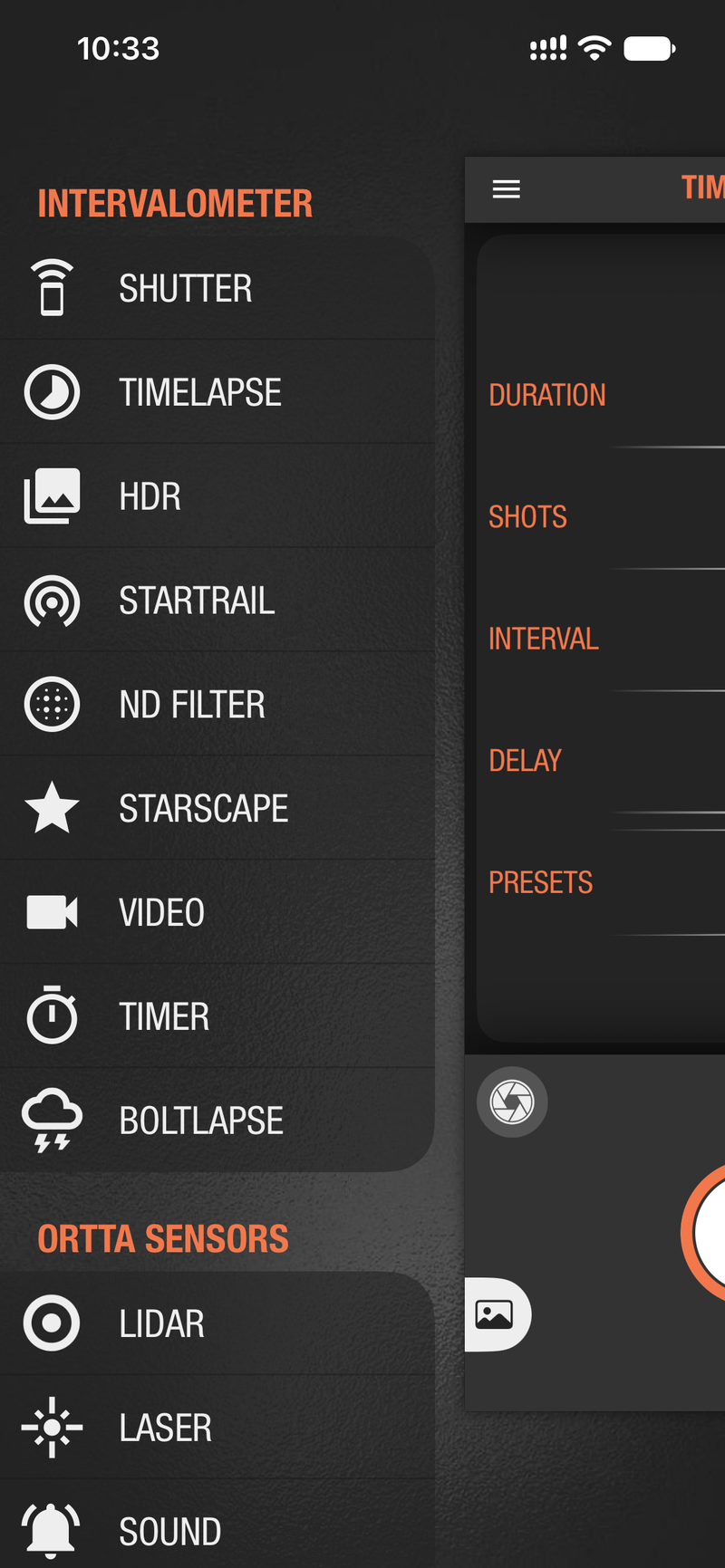
A page lists the same parameters as the program on Pluto 2. For example, Timelapse has Duration, Shots, Interval and Delay, plus Presets (Custom or Standard). Tap the large round button to start the program.
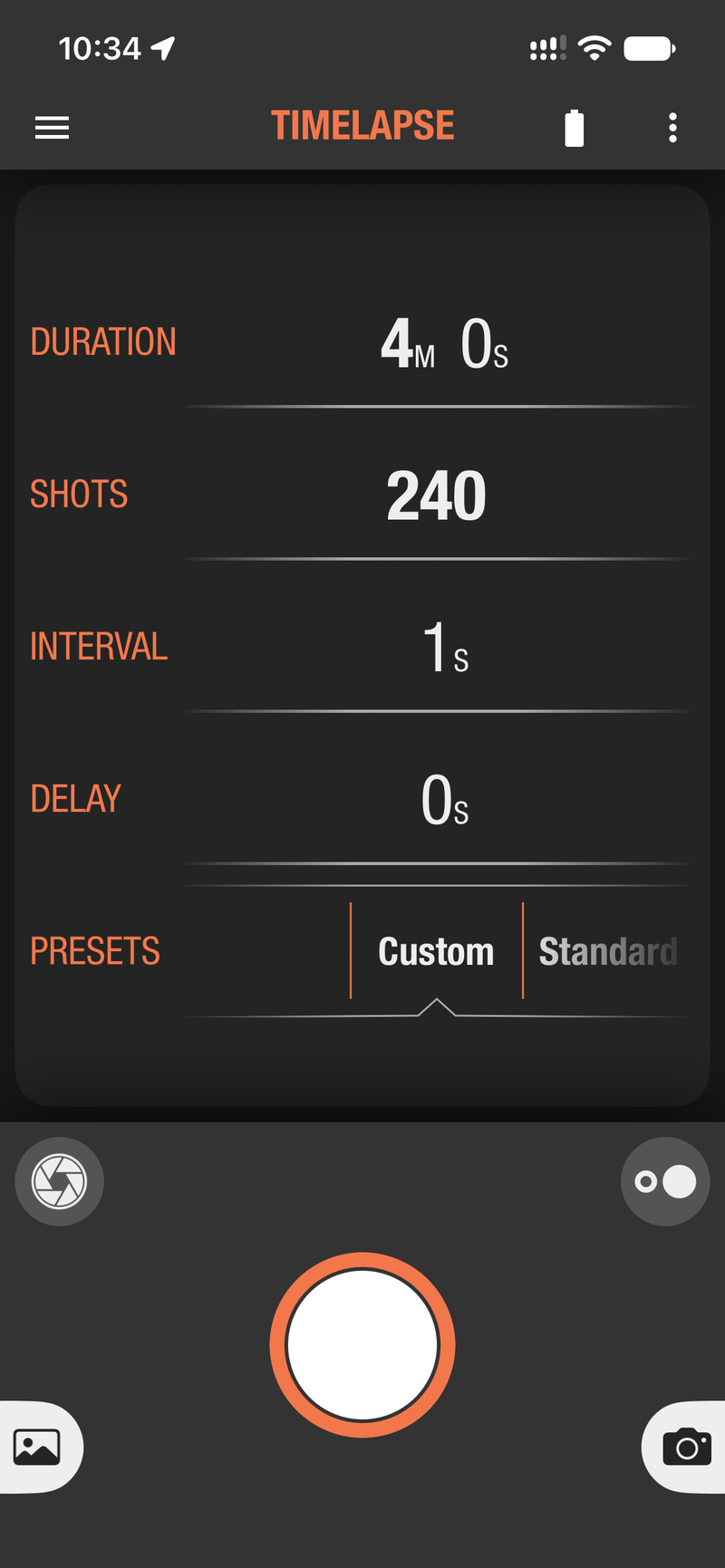
Live sensor readings. Sensor pages show the reading from Pluto 2 at the top. On the Lidar page this is the measured distance, here 1.59 m, with Mode, Threshold, Filter and Sensitivity below.
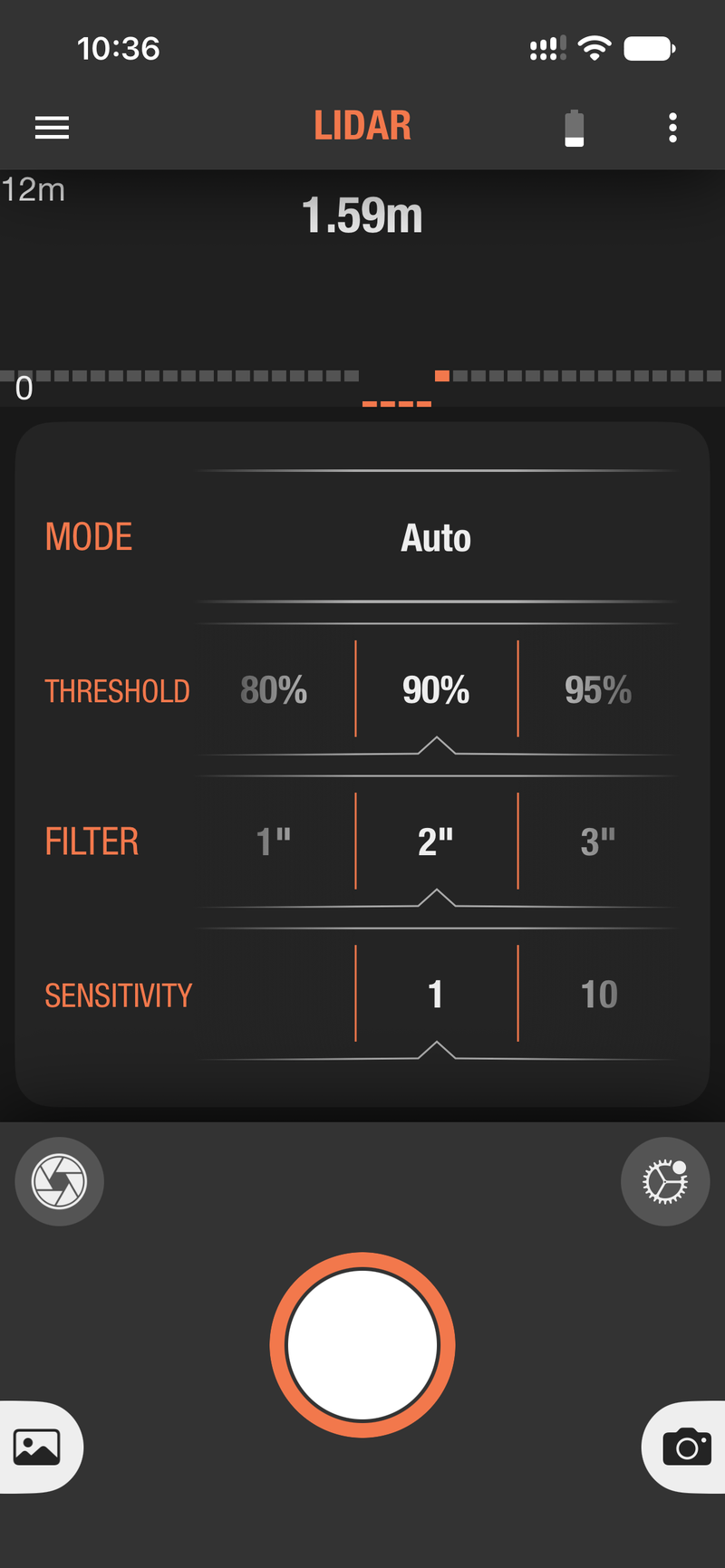
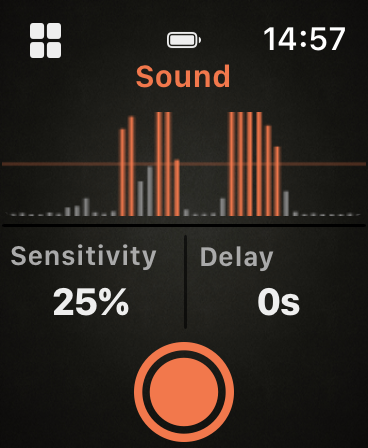
Pluto 2's own screen has no Delay setting for sensor programs, but the Ortta app (and, for Sound, the watch) does. Pluto 2 honours it for Laser, Sound, Light and Aux: after the sensor triggers, it waits for the Delay before it fires the camera. Lidar, Lightning and Fusion ignore any Delay.
To update Pluto 2's firmware, see Firmware Updates.
Smart Sensors use the sensors of your phone to trigger the camera through Pluto 2 — complementing the hardware sensors built into the device:
| Mode | How it triggers |
|---|---|
| Sound | Uses the phone's microphone — like the device Sound trigger, but handy when the phone is closer to the subject |
| Vibrate | Uses the phone's accelerometer; fires when vibration exceeds the set threshold |
| Motion | Uses the phone's camera to detect motion; zoom in/out to define the watched area, adjust sensitivity to subject size |
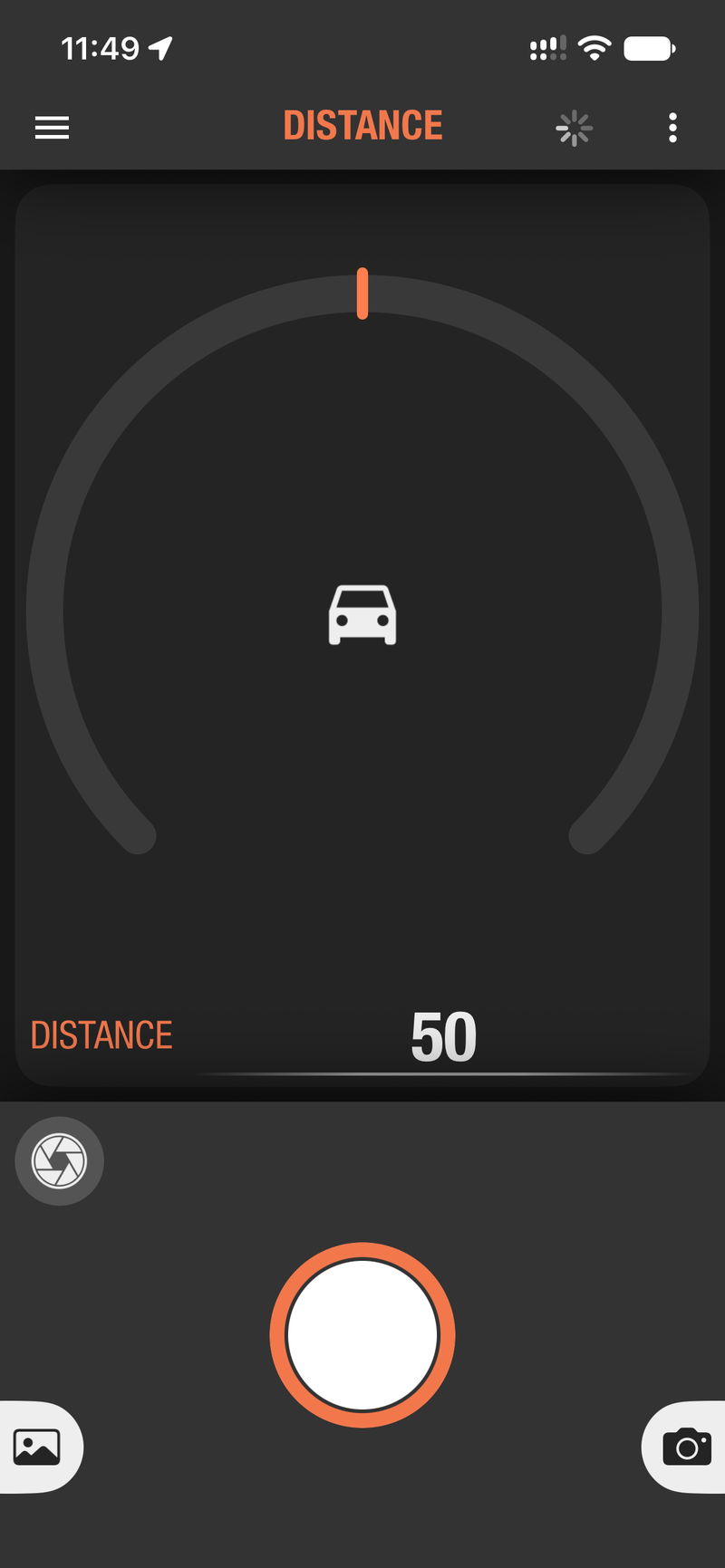
| Distance | Fires every set distance traveled — great for road-trip time-lapses, no wasted frames while stopped |
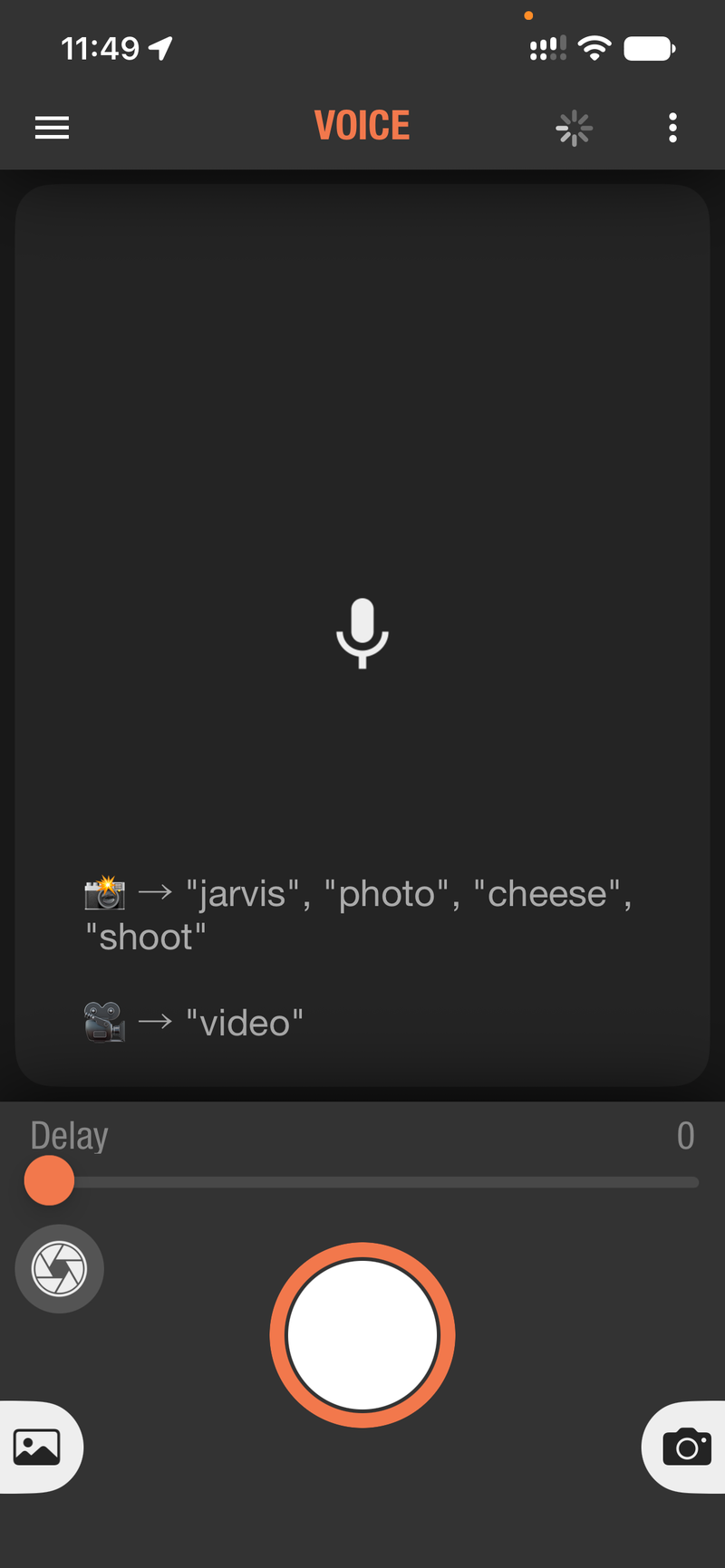
| Voice | Recognizes a spoken command and fires; other noise is filtered out no matter how loud. Say "jarvis", "photo", "cheese" or "shoot" to take a picture, or "video" to start or stop recording. English only |
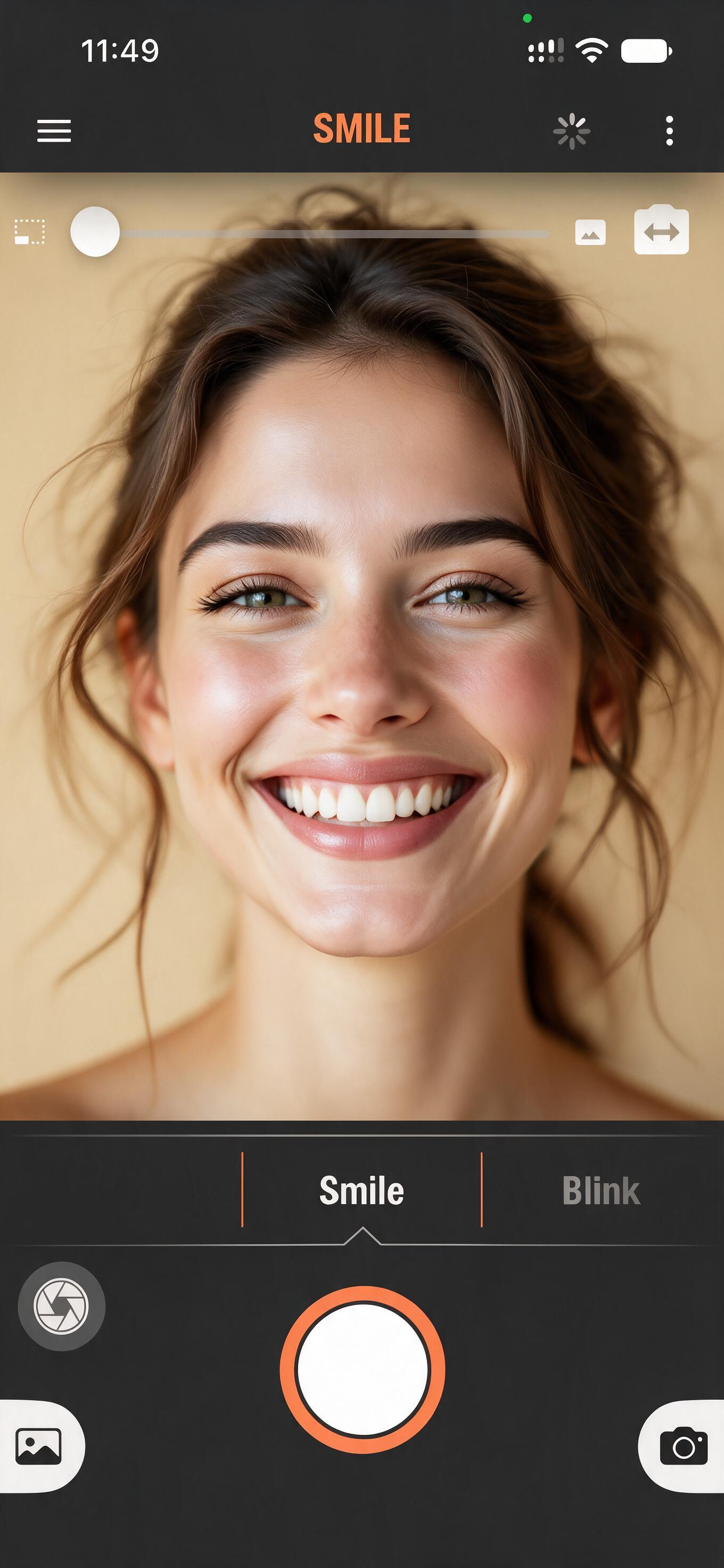
| Smile | Detects a smile (or, in Blink mode, a blink) and fires 1.5 s after a notification sound — perfect for selfies; use zoom to stand farther away |
Voice recognition runs in the app. Pluto 2 itself has no built-in voice recognition, so it needs the phone nearby.
The example below is the app's Sound page. A dial and a level histogram show the sound picked up by the phone, and the Delay slider sets the wait before the camera fires.
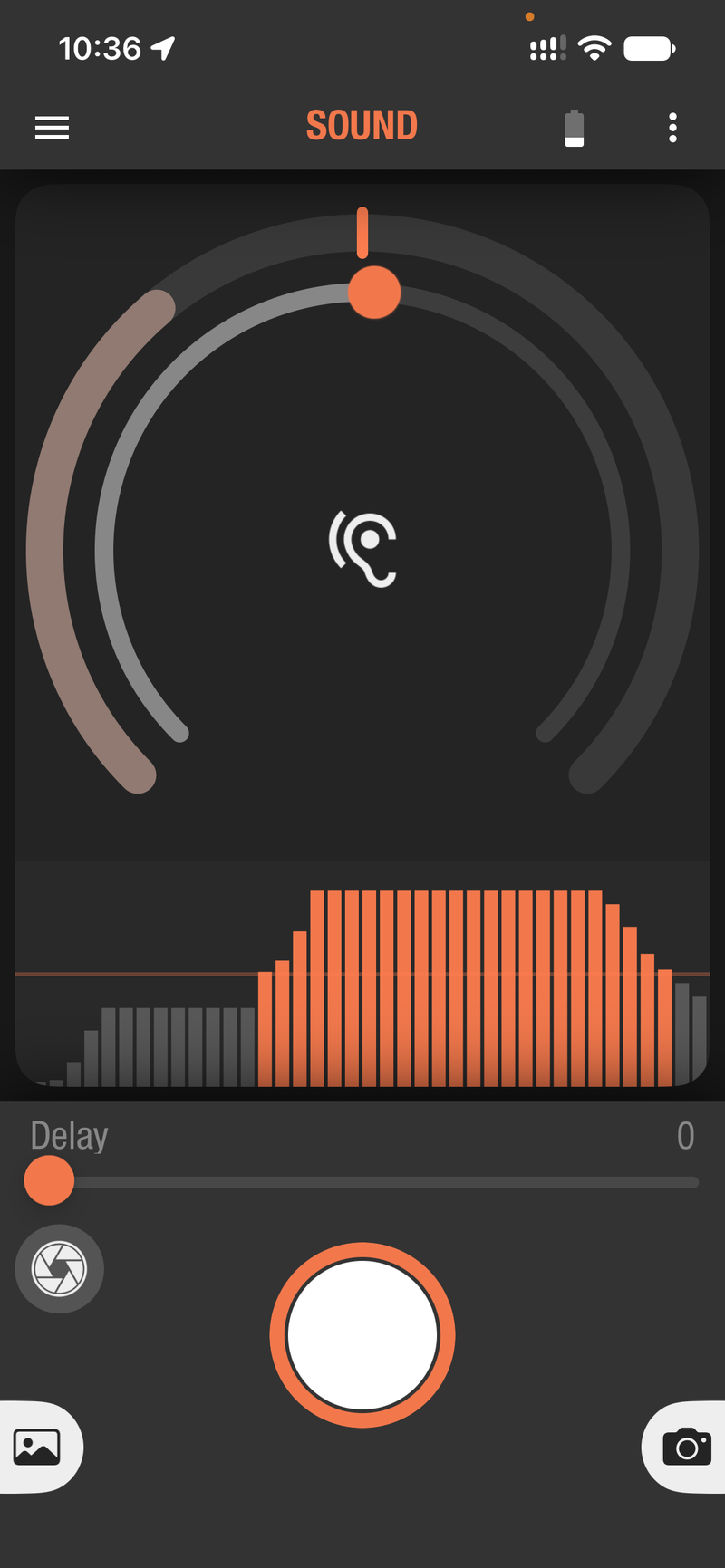
The other pages work the same way:
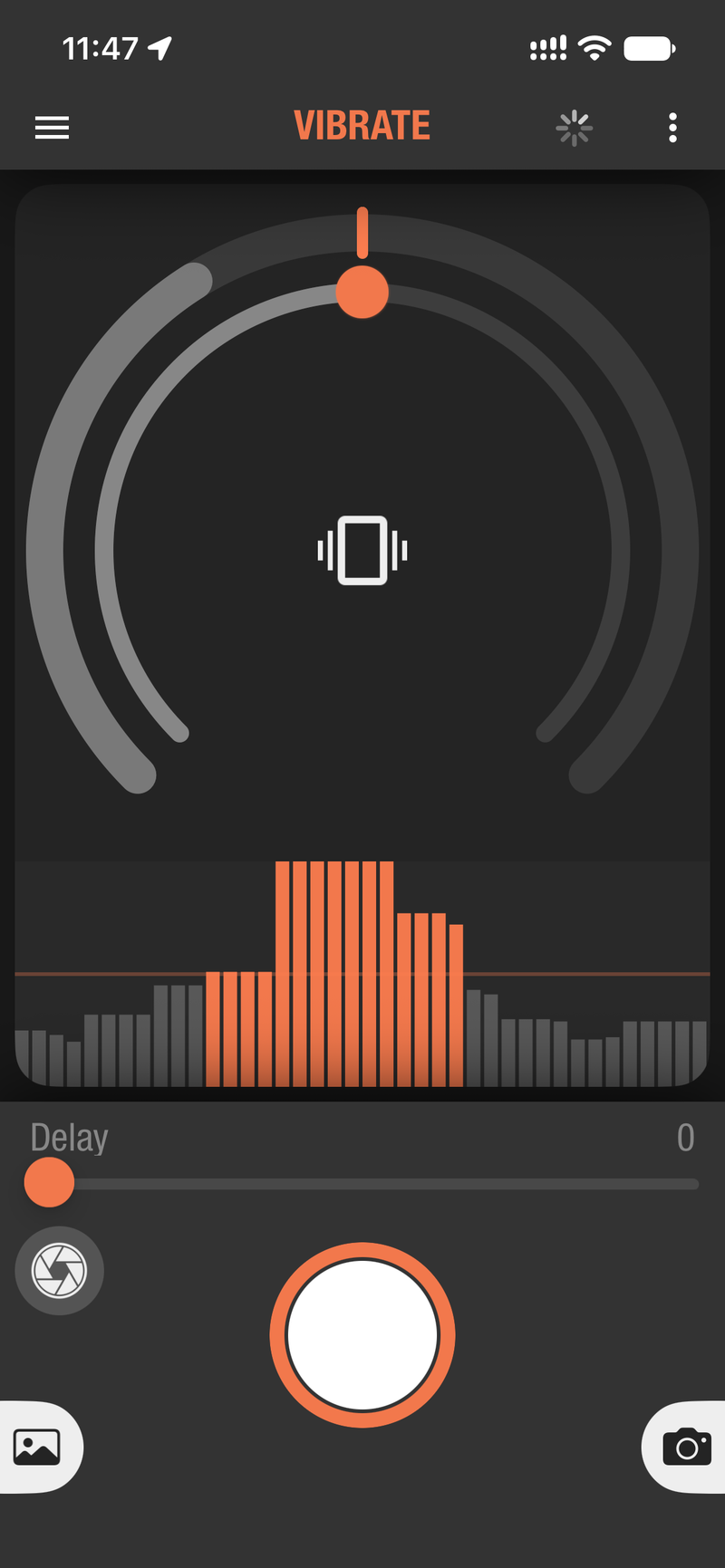 Vibrate |
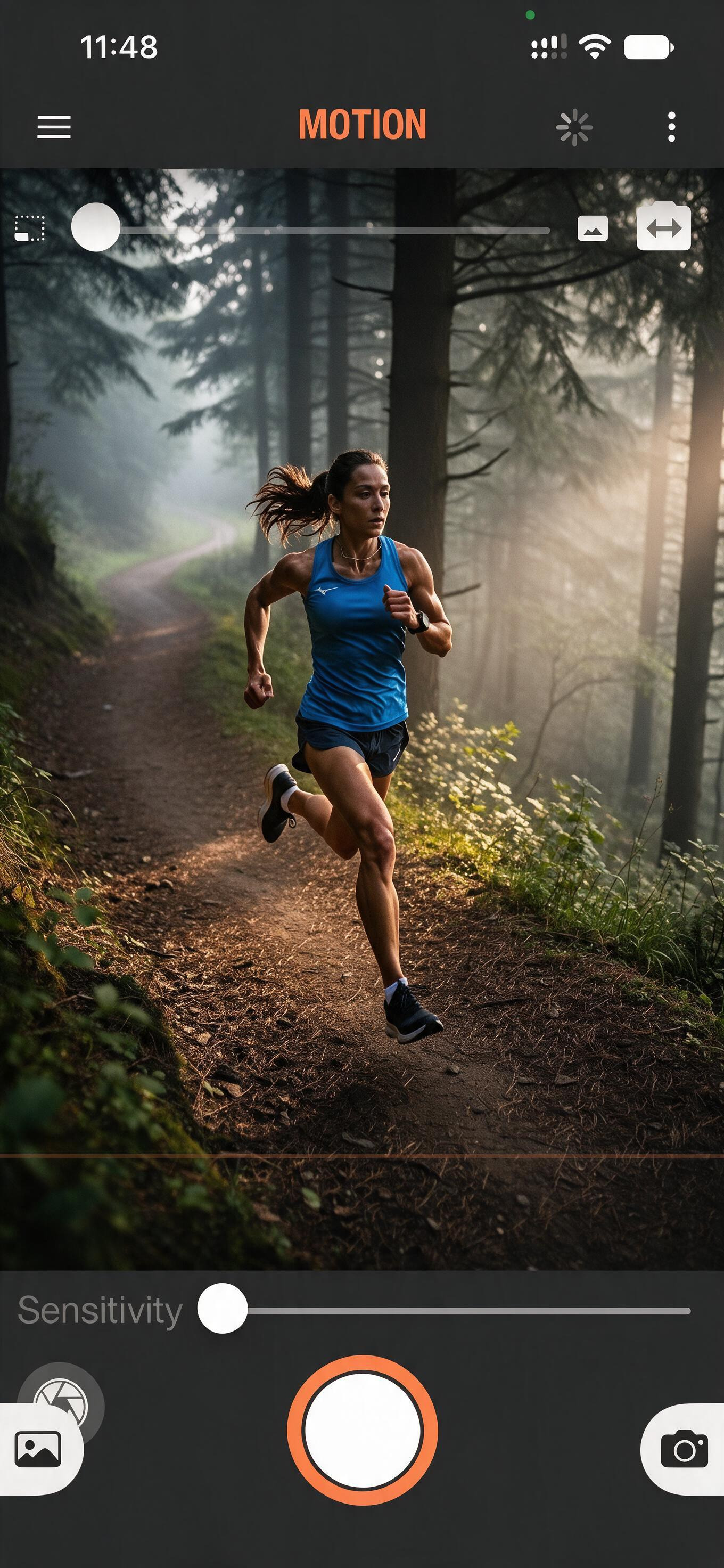 Motion |
 Distance |
 Voice |
 Smile |
Droplet photographs water drops colliding in mid-air. It is available only in the Ortta app, not on Pluto 2's screen. It needs a Pluto Valve, a flash and a dark room.
Pluto 2 runs the whole sequence by itself, in this order:
Each tap of start takes one picture. The flash is the real exposure, so the room must be dark and the camera in manual exposure.
Connections
Setup
Settings
| Setting | Description |
|---|---|
| Drop1 Size | How long the valve stays open for the first drop, in ms. Default 10. |
| Drop2 Delay, Drop2 Size | Pause after drop 1 and open time of drop 2. Defaults 60 and 10. |
| Drop3 Delay, Drop3 Size, Drop4 Delay, Drop4 Size | The same for drops 3 and 4. Both default to 0, which turns the drop off. |
| Flash Delay | Time from the first drop opening until the flash fires, in ms. Default 200. |
Calibration. Set Drop1 Size to 10 ms and Drop2 Size to 0, so only one drop falls. The flash should fire when the first drop has bounced off the water and reached its highest point. Tap the auto-calibrate button next to Flash Delay, set Step to 5 ms and Interval to 5 s, then start the calibration. Pluto 2 takes a picture every 5 s and raises the Flash Delay by 5 ms each time. Watch the camera screen and stop when the drop is at its highest point. Then set Drop2 Size to 10 ms and calibrate Drop2 Delay the same way.
Now you can try different water colours and lighting.
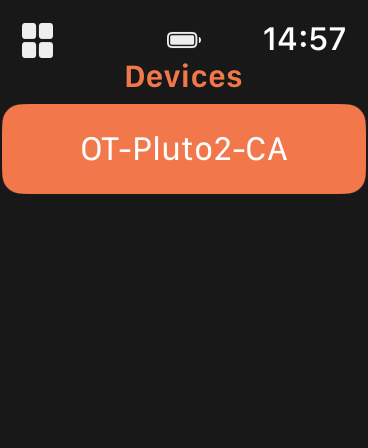
The Ortta Watch app puts Pluto 2 on your wrist: your Apple Watch connects to Pluto 2 directly over Bluetooth — no phone needed in the field.
The watch remembers the last device and reconnects to it the next time you open the app. To switch to another device, open Devices and tap it.
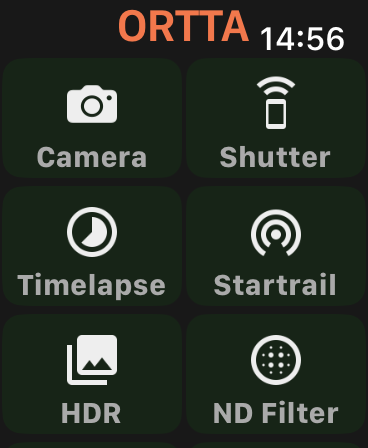
The watch menu has these entries:
| Entry | What it does |
|---|---|
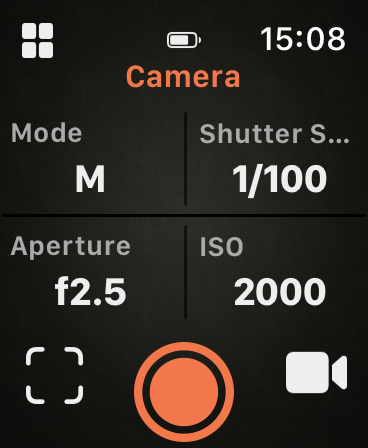
| Camera | Shows the exposure mode, shutter speed, aperture and ISO of the connected camera, lets you change them, and fires the shutter. Also has buttons for live view and video. |
| Shutter | Fires the camera with the selected release mode (Tap, Focus, Hold, Lock, Bulb and so on). |
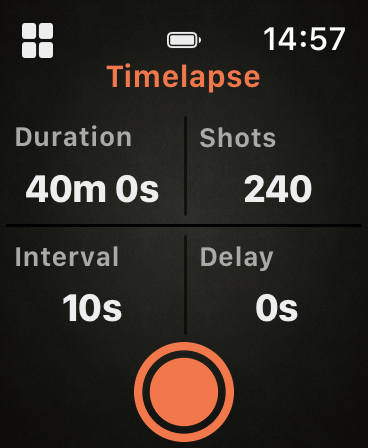
| Timelapse | Duration, Shots, Interval and Delay. |
| Startrail | Shots, Exposure, Gap and Delay. |
| HDR | Middle Exposure, Bracket, Shots and Delay. |
| ND Filter | Base shutter speed and ND filter strength. |
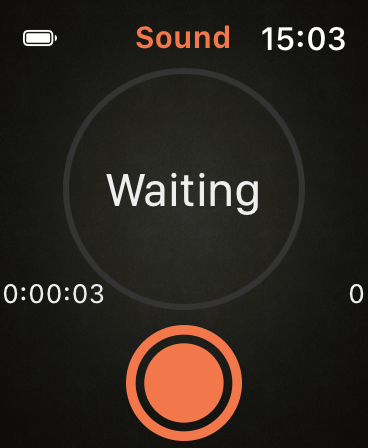
| Sound | Sound trigger with Sensitivity, Delay and a live level plot. |
| Lightning | Lightning trigger with Sensitivity and a live level plot. |
| Devices | Connect to Pluto 2 (see above). |
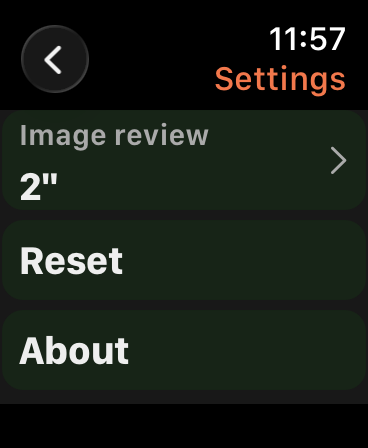
| Settings | Image review time, reset to defaults, About. |
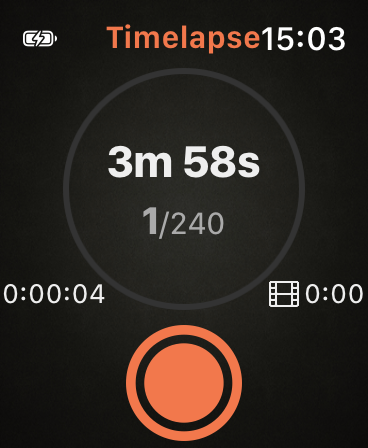
Tap the start button on a program page to start it. While it runs, a progress view is shown on the watch.
 |
 |
 |
| Menu | Devices | Camera |
 |
 |
 |
 |
| Timelapse | Timelapse running | Sound | Sound running |
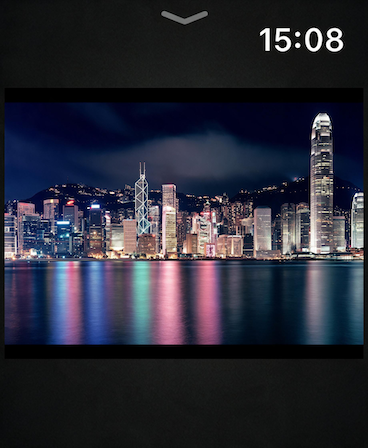
The watch can show the photo you just took, but only when the camera is connected through an Io Pro. Only the Io Pro (and Pluto 2 Pro) can read images from the camera over PTP; Pluto 2 itself cannot, and it gets the photo from the Io Pro. With a Bluetooth camera or a cable, the watch shows no photos.
Open Settings on the watch and tap Image review to choose how long the photo stays up: Off, 2", 4", 8" or Always on. With Always on the photo stays until the next one arrives; swipe down to close it.
 |
 |
| Photo review | Settings |
Press Right on the home screen to open Settings. It has five pages: Devices, Camera, Review, Display and System. Use Up/Down to move, OK to open a page or change a value, and Left to go back.
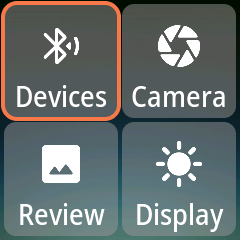
Settings that belong to a single program (burst, shutter pulse, trigger reset time, and so on) are not here — they are in that program's Drive row, see 7.6 Drive Settings.
| Setting | Default | What it does |
|---|---|---|
| PreFocus | 0" | Time the shutter button is half-pressed (autofocus) before each exposure. |
| Exposure | 0.3" | How long the shutter is held for each exposure. |
Both use the same list of times: 0", 30 ms, 50 ms, 100 ms, 150 ms, 0.2"–0.9", 1"–10", 15"–55", 1'–8'.
Controls how photos from the camera appear on Pluto 2 after each shot.
| Setting | Options | Default |
|---|---|---|
| Image review | Off, 2", 4", 8" | 2" |
| ProgTime | Time list | 2" |
| Scale | Fit, Fill | Fill |
| Quality | Max, High, Medium, Low | High |
The page also has a Preview group with its own Scale and Quality options, and a Download toggle (On by default) that turns the transfer of a thumbnail of each new photo on or off.
Image review needs an Io Pro: it reads each photo from the camera over USB (PTP) and sends it to Pluto 2 (see Connecting your camera). Pluto 2 cannot read photos from the camera by itself, so with a Bluetooth camera or a shutter-release cable there is nothing to review and these settings have no effect.
| Setting | Options | Default |
|---|---|---|
| Backlight | Screen brightness: Off, 1%, 5%, 10%, 20%, 30%, 40%, 50%, 60%, 70%, 80%, 90%, 100% | 50% |
| Led | Brightness of the green program LED and the white power LED. Same options as Backlight | 50% |
| DispOff | Time without button presses before the screen turns off: Stay On, 30", 1', 2', 5', 10', 20', 30', 60', 2h | 5' |
| PowerOff | Time before Pluto 2 powers off. Same options as DispOff | 30' |
| Dark Mode | Default, Dark, Light | Default |
Press any button to wake the screen.
| Setting | Options | Default |
|---|---|---|
| Language | English, 简体中文 | English |
| Sound | On, Off — turns the buzzer on or off | On |
The Misc group contains:
Every sensor program (Laser, Sound, Light, Lightning, Aux, Fusion, Lidar) and Boltlapse has a Drive row at the bottom of its parameter list. It opens the page below. The settings are shared by all programs.
| Setting | Options | Default |
|---|---|---|
| Drive (mode) | Still, Video | Still |
Still (shown when Drive is Still)
| Setting | Default | What it does |
|---|---|---|
| PreFocus | 0" | Time the camera autofocuses before each shot. Keep 0" for the fastest response. |
| ShutPulse | 200 ms | How long the shutter signal is held. A short pulse is enough for a flash. Choose a longer pulse if your camera does not fire reliably, for example with Live View on. |
| Burst | Off | Number of pictures per trigger: Off, 1–10, 12, 15, 20, 50, 60, 70. |
| BurstInt | 0.2" | Time between the pictures in a burst. |
Video (shown when Drive is Video)
| Setting | Default | What it does |
|---|---|---|
| Duration | 1' | How long each recording runs: Manual (start and stop with separate triggers), 1"–10", 15", 20", 30", 45", 1'–3', 5', 10', 15', 20', 30'. |
Bulb (shown only when the program's capture mode is Bulb Flash)
| Setting | Default | What it does |
|---|---|---|
| Bulb Time | 1' | How long the shutter stays open. |
| Bulb Gap | 0.2" | Pause between exposures. |
Trigger
| Setting | Default | What it does |
|---|---|---|
| Reset Time | 3" | Minimum time between two triggers. After a trigger fires, further events are ignored for this period. Use it to skip unwanted events (such as the camera's own shutter sound) and to set a minimum trigger interval. |
| Trigger Phone | Off | Also tells the connected Ortta app to take a picture with the phone when the program triggers. |
| Keep Alive | Off | While the program waits for a trigger, half-presses the shutter at this interval so the camera does not go to sleep. Off, 5"–60", 1'–60'. |
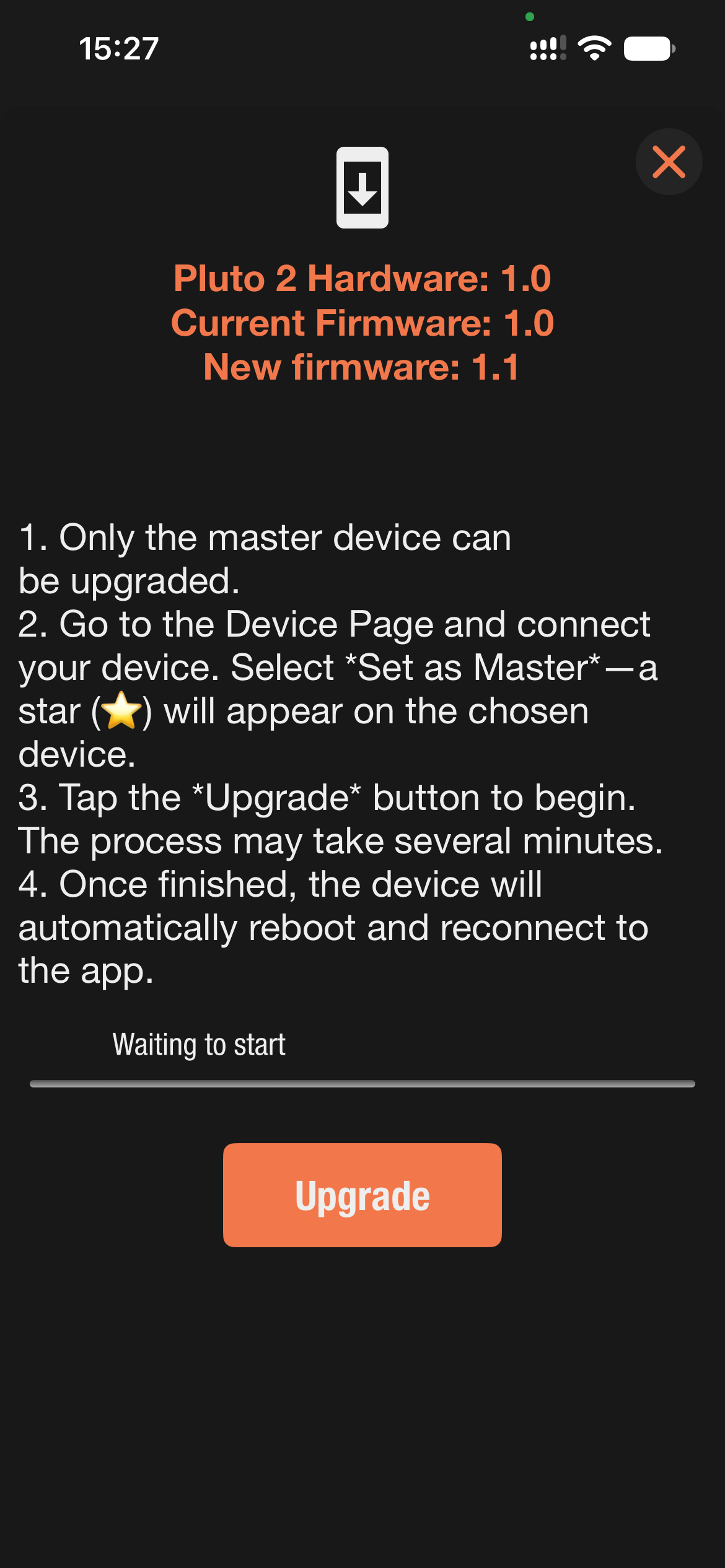
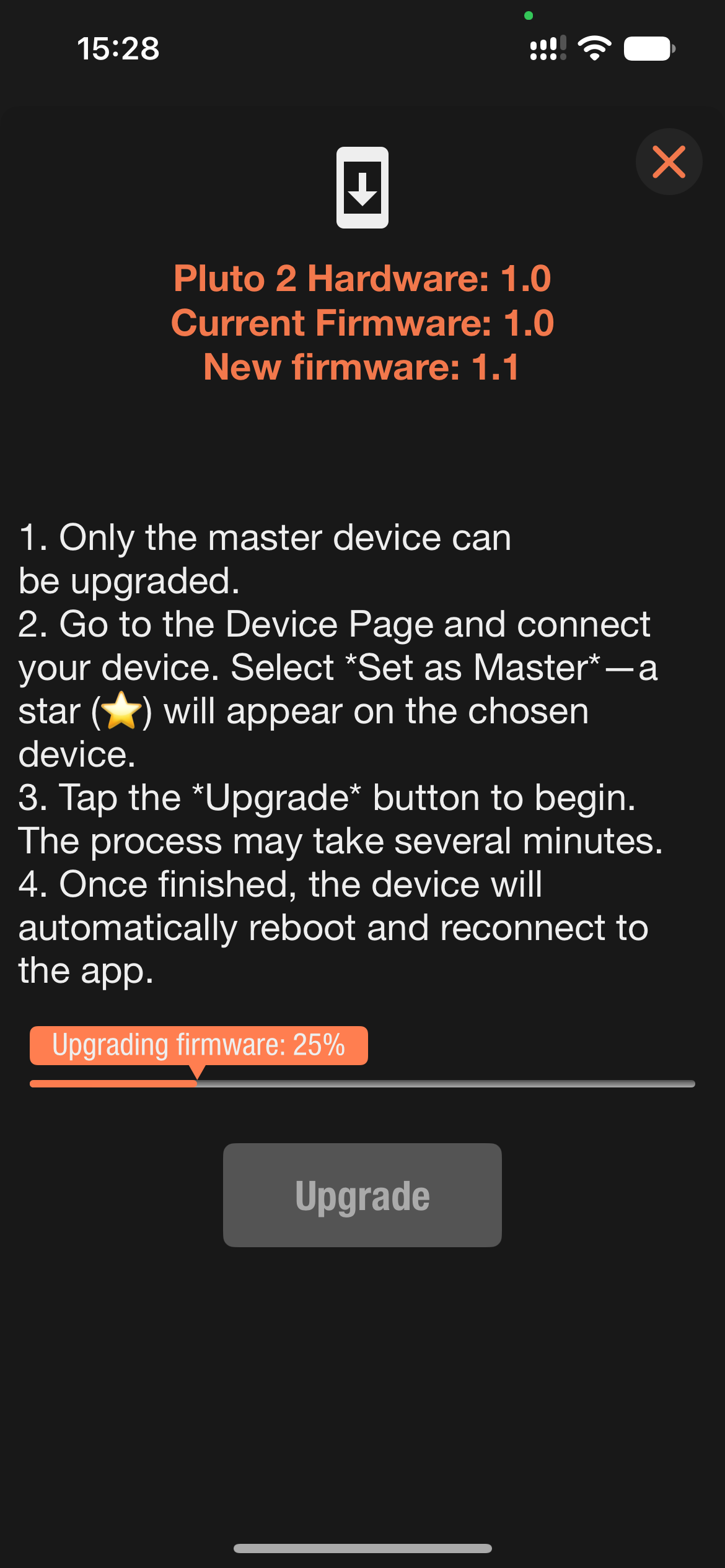
New firmware adds features and fixes bugs. You update Pluto 2 from the Ortta app over Bluetooth; no computer or cable is needed.
 |
 |
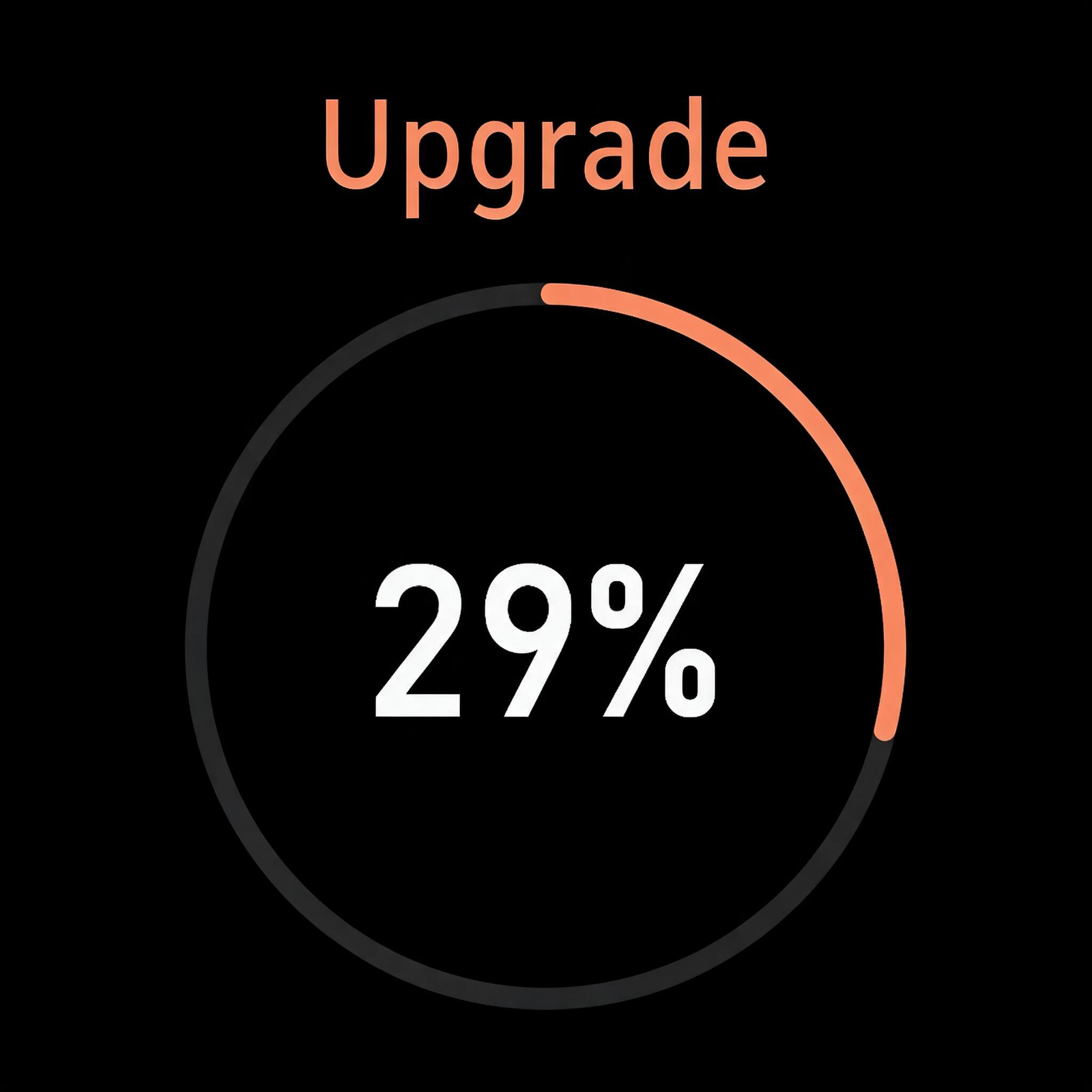 |
| Ready to upgrade | Upgrading in the app | Upgrading on Pluto 2 |
While the update runs, Pluto 2 does not turn off by itself and its screen stays on. If the update stops or fails, these timers go back to your settings and you can start it again.
Note: after an update, leave Pluto 2 on and let the Ortta app connect to it once. This confirms that the new firmware works. If the new firmware does not start properly, Pluto 2 goes back to the previous version by itself, and the app offers the update again.
Does my phone have to stay on during a program? No. Once a program is running, Pluto 2 works on its own and you can walk away with your phone. The exception is the Smart Sensors, which run on the phone. Sound and Voice also work with the app in the background or the screen off. Vibrate, Motion, Distance and Smile need the app in the foreground with the screen on.
Can I use autofocus? Yes. Set a PreFocus time in Drive Settings so the camera focuses before the shutter is released. Autofocus does not guarantee a sharp picture every time. If the camera does not release with autofocus on, turn off Back Button Focus on the camera.
How do I put my camera in Bulb mode? On some cameras, turn the mode dial to "B". On others, choose manual exposure and set the slowest shutter speed: the display then shows "B".
Can I use Pluto 2 in the cold? Yes, but the battery drains much faster in the cold. You can power Pluto 2 from any 5 V USB battery pack.
Lightning keeps shooting but there is no lightning. The sensitivity is too high. Lightning reacts to a change in light, not to the light level, so with steady light the reading must stay low. To test it, cover the light sensor with your hand and lower the Sensitivity until the reading is below the threshold marker. Then move your hand away quickly: the reading should jump above the marker. Start the program only when it behaves like this. See Lightning.
A sensor program fires too late for fast action. See High-speed photography basics: use the flash method in a dark room instead of firing the camera shutter.
The app cannot find Pluto 2.
Pluto 2 does not fire the camera.
A sensor program never triggers, or triggers all the time. Watch the live bar at the top of the program page. Adjust the Sensitivity so the reading stays below the threshold marker at rest and goes above it when the event happens. See the page of your sensor in Sensor Triggers.
The Droplet valve does not work. Check that the valve is on and charged and its cable is in the Aux port, and that the tube has water above the bottom of the small tube. See Droplet.
